

Set up two-step sign-in
Scan the QR code with an authenticator app and keep your recovery codes.
Two-step sign-in asks for a 6-digit code from an app on your phone after your password, so a stolen password alone cannot open BMS.
-
Open Edit Profile and, under Security, press Off - set up next to Two-factor authentication.
-
Scan the QR code with your authenticator app. Can’t scan it? Type the setup key shown under the code into the app instead.
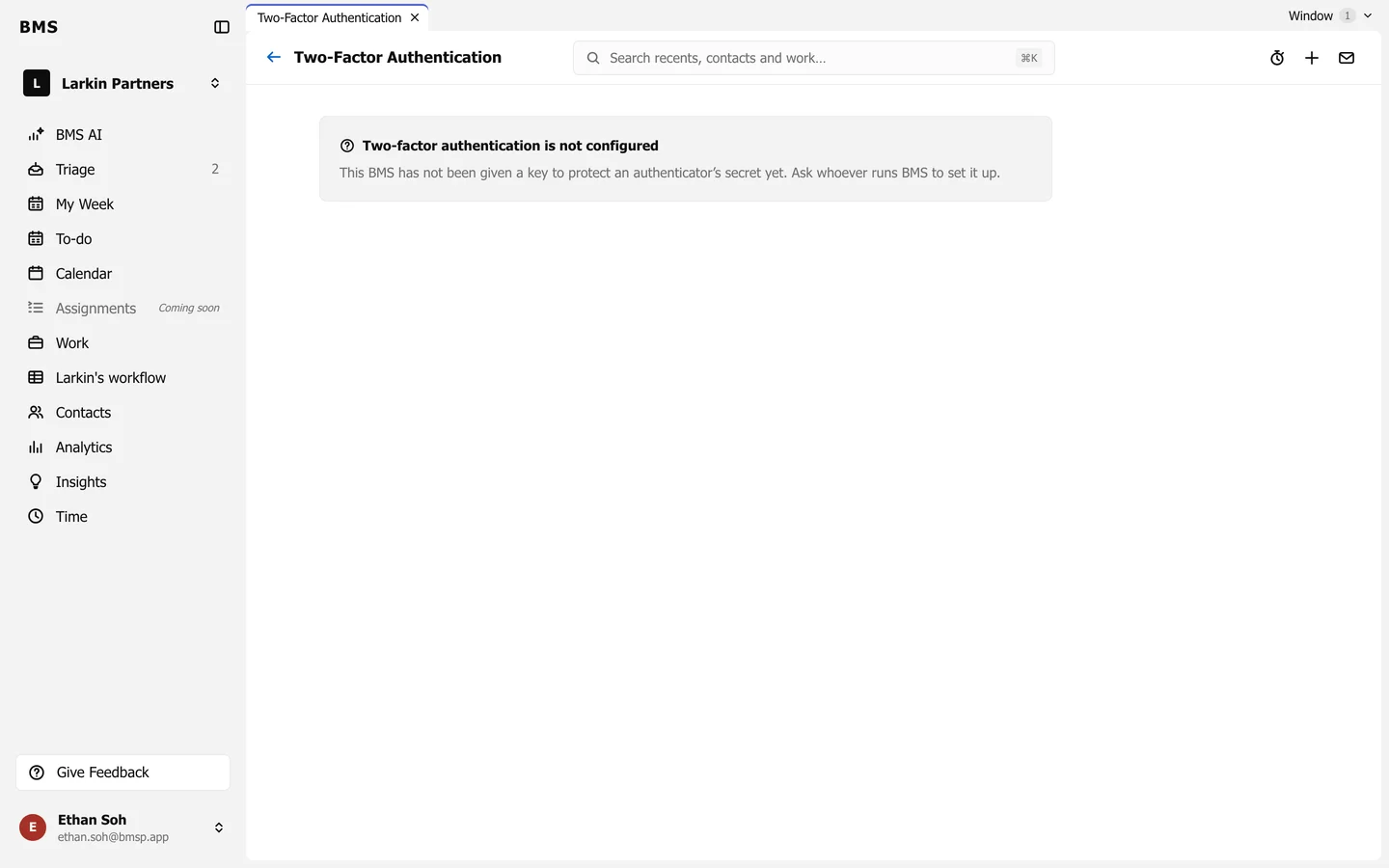
Scan the code, then type the 6-digit code the app shows. -
Type the code from the app into 6-digit verification code and press Verify.
-
Save your recovery codes: press Download codes, keep the file somewhere safe, then press Continue. Each code works once, if you lose your phone.
From now on, every sign-in asks for a code. If you do not have your phone, press Use a recovery code at the code step.