

Add an email to a work item
File a conversation on the right job so the team sees it on the timeline.
-
Open the email and press Add to work (the briefcase) in the action bar.
-
In Add to Timeline, stay on the Work tab and search for the job: by client, work type or month. Filter by Status narrows the list.
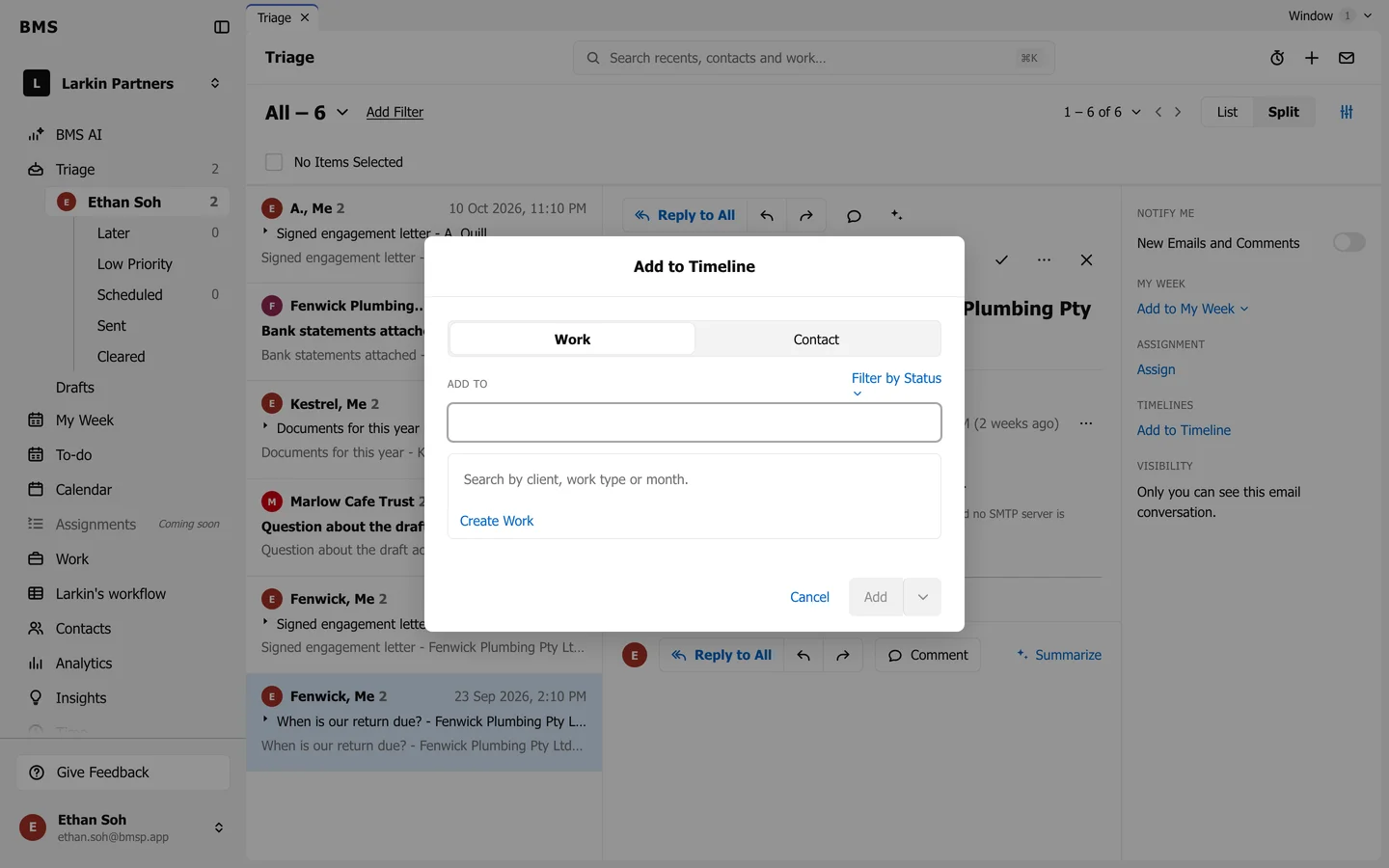
Pick the job the email belongs to. -
Press Add & Clear to file it and clear it from Triage, or choose Add from the button’s arrow to keep it in Triage.
The conversation now shows on the job’s timeline, and under Timelines in the information tray. Remove it there with its x.