Send a client request
Ask a client for documents and answers from the job, with reminders.
A client request is a section of a job’s tasks that the client answers in the portal. Each task in it becomes one item the client uploads to, comments on or marks done.
-
Open the job and go to its Tasks tab. A client request section shows “Not sent to Client.” until it is sent.
-
Add the tasks you need, one per document or answer, such as “Upload your PAYG payment summary”.
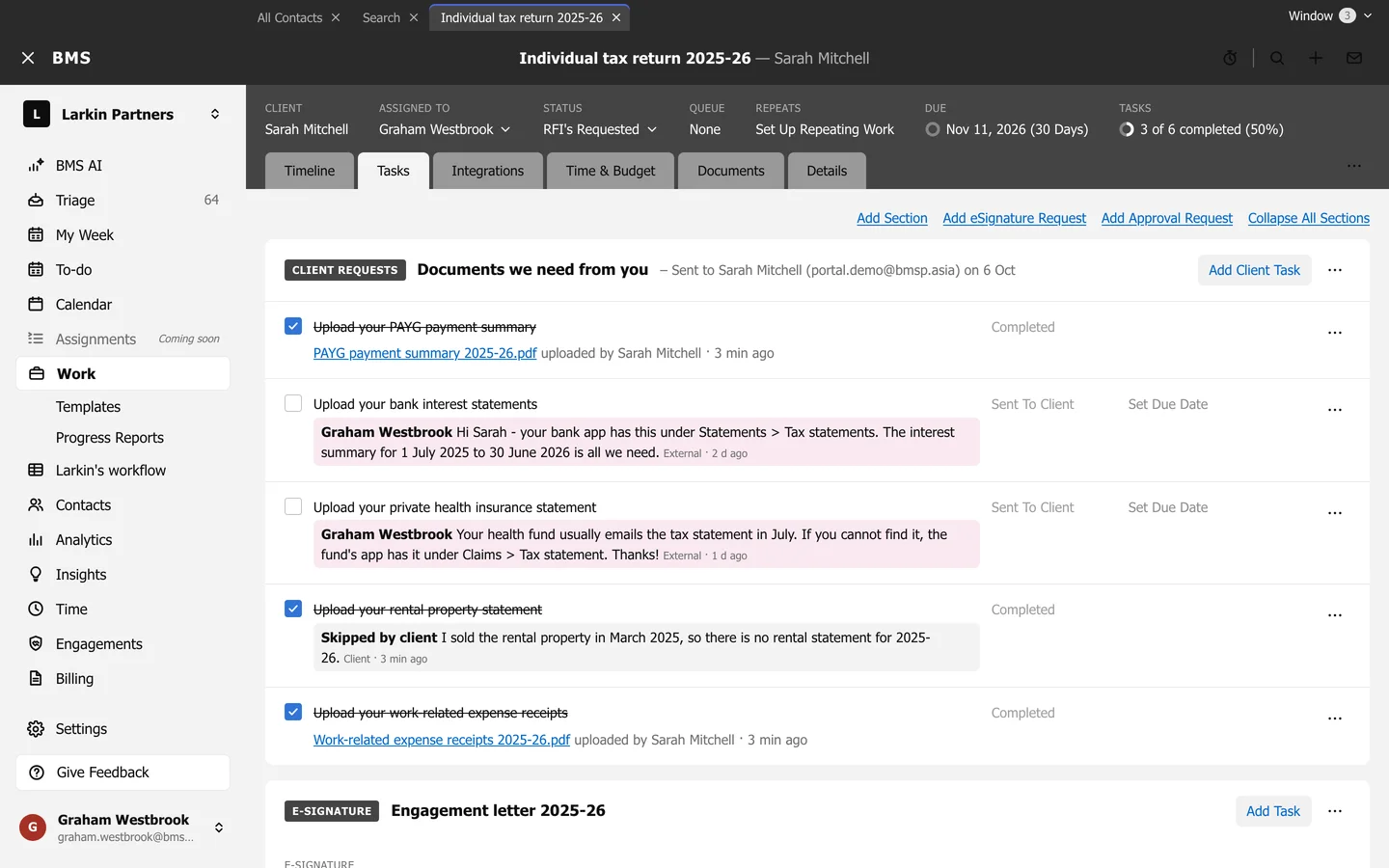
A client request section on the job's Tasks tab. -
Press Send Client Request.
-
Fill in the first step:
- Send to: up to 10 people.
- From: the work assignee, the client owner, or another colleague.
- Subject and Email.
- When: Send Request now, or Schedule Request to Auto Send Later with a date.
-
Press Next, choose the reminders (see Automatic reminders to clients), then press Send Request now (or Save for a scheduled request).
Each recipient who had no portal access is given access to the work’s client, so sending a request also invites them.
After sending
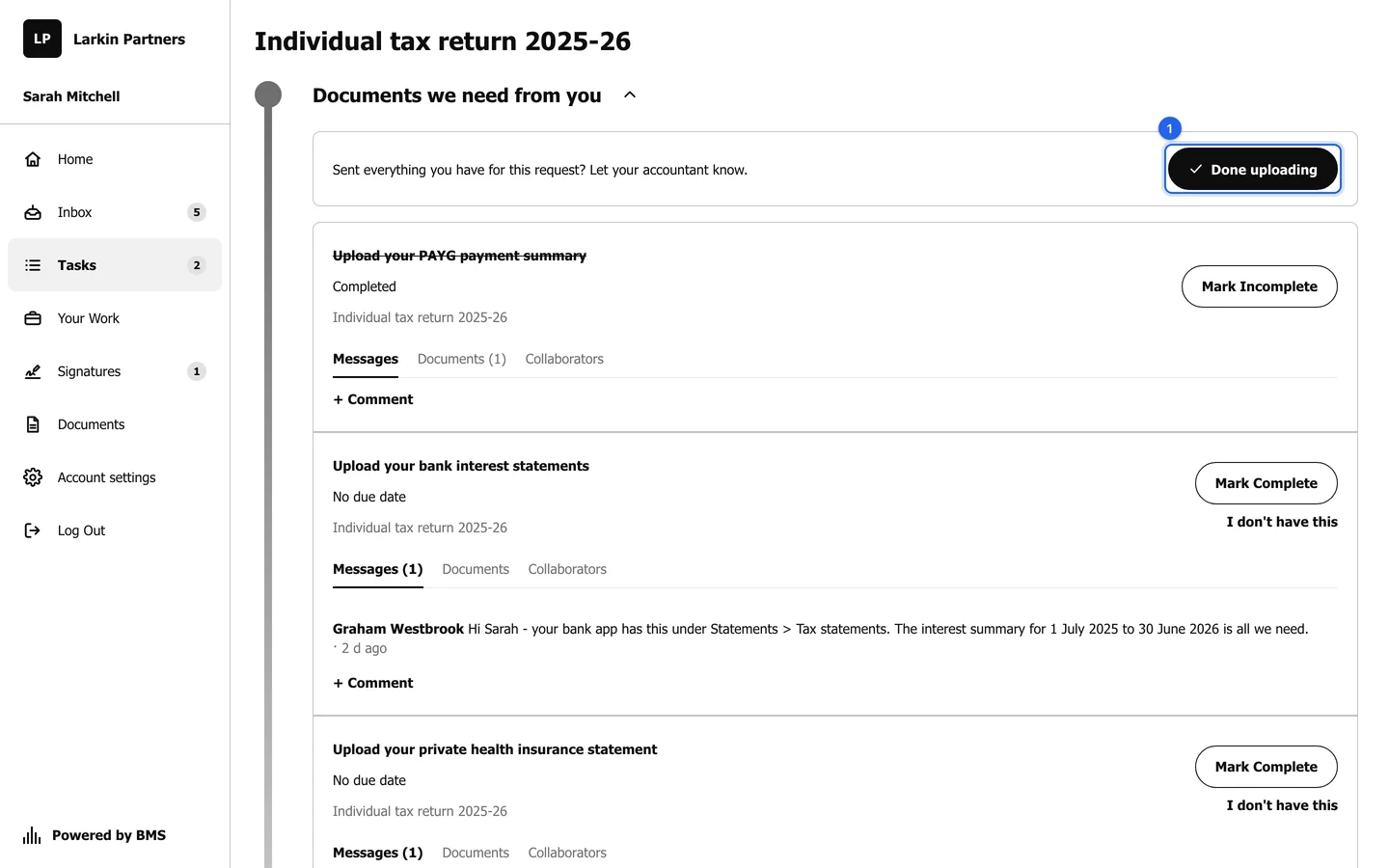
Section titled “After sending”- The client sees the request under Tasks and in Waiting for action on Home.
- Each upload, comment, skip and Done uploading reaches you in Triage as a Client Task item.
- The section’s menu offers Resend Client Requests and Print Client Request Summary, and Cancel Sending while a request is scheduled.