

Add an email to a client timeline
Keep correspondence on the client record with Add to Timeline.
-
Open the email and press Add to Timeline under Timelines in the information tray (or More actions > Add to Contact).
-
Choose the Contact tab and search for the client. Create Contact adds a new one if they are not in BMS yet.
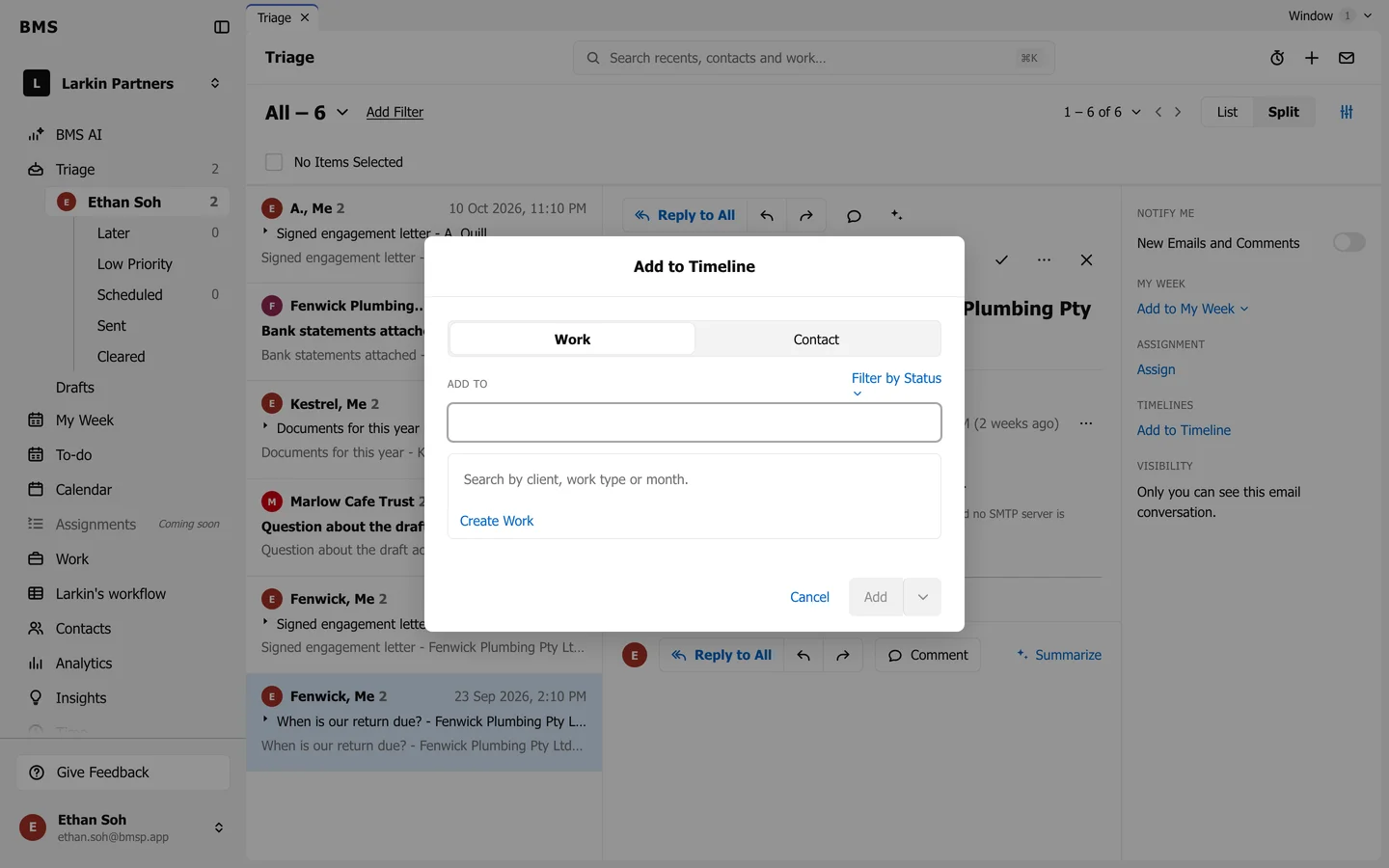
Add to Timeline: choose a contact or a job. -
Press Add & Clear, or Add to keep it in Triage.
The email now shows on the client’s timeline for colleagues who can see it.