

Account settings: notifications, two-step sign-in and password
Keep your account secure and choose what you are told about.
Press Account settings in the portal’s menu; on a phone, open the menu first.
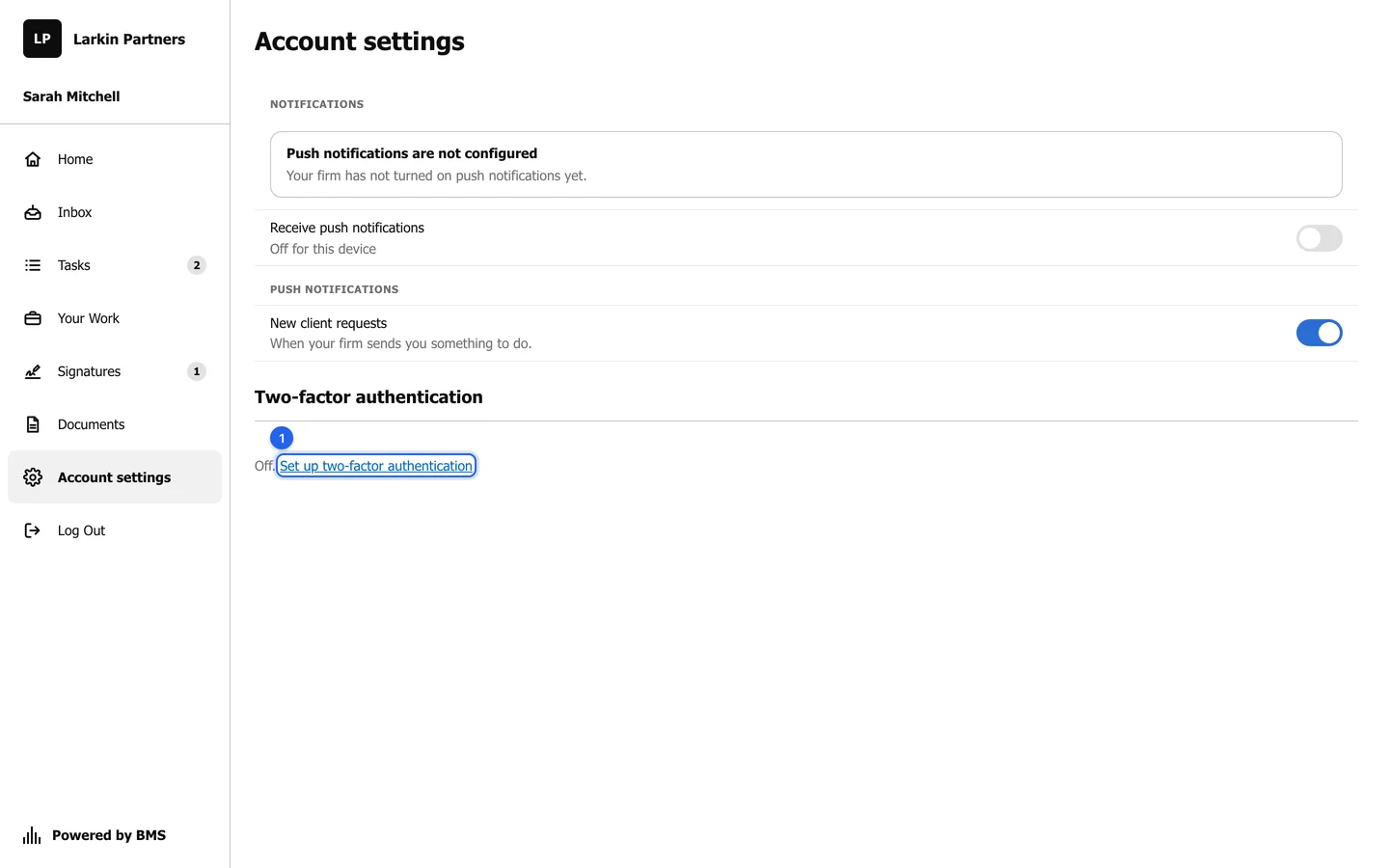
Notifications
Section titled “Notifications”Turn on Receive push notifications to be told on this device when your firm sends you something to do. Push notifications work only once your firm has turned them on; until then the page says so.
Set up two-step sign-in
Section titled “Set up two-step sign-in”Two-step sign-in asks for a code from an authenticator app after your password, so nobody can sign in with your password alone.
-
Press Set up two-factor authentication.
-
Scan the QR code with an authenticator app, such as Google Authenticator, Microsoft Authenticator or Authy.
-
Type the 6-digit code the app shows, and confirm.
-
Save your recovery codes somewhere safe. Each one works once, if you lose your phone.
Password
Section titled “Password”To change a forgotten password, press Forgot Password? on the sign-in page and follow the email.