

Resend, revoke or edit a client's sign-in
Manage a client's access after the invitation.
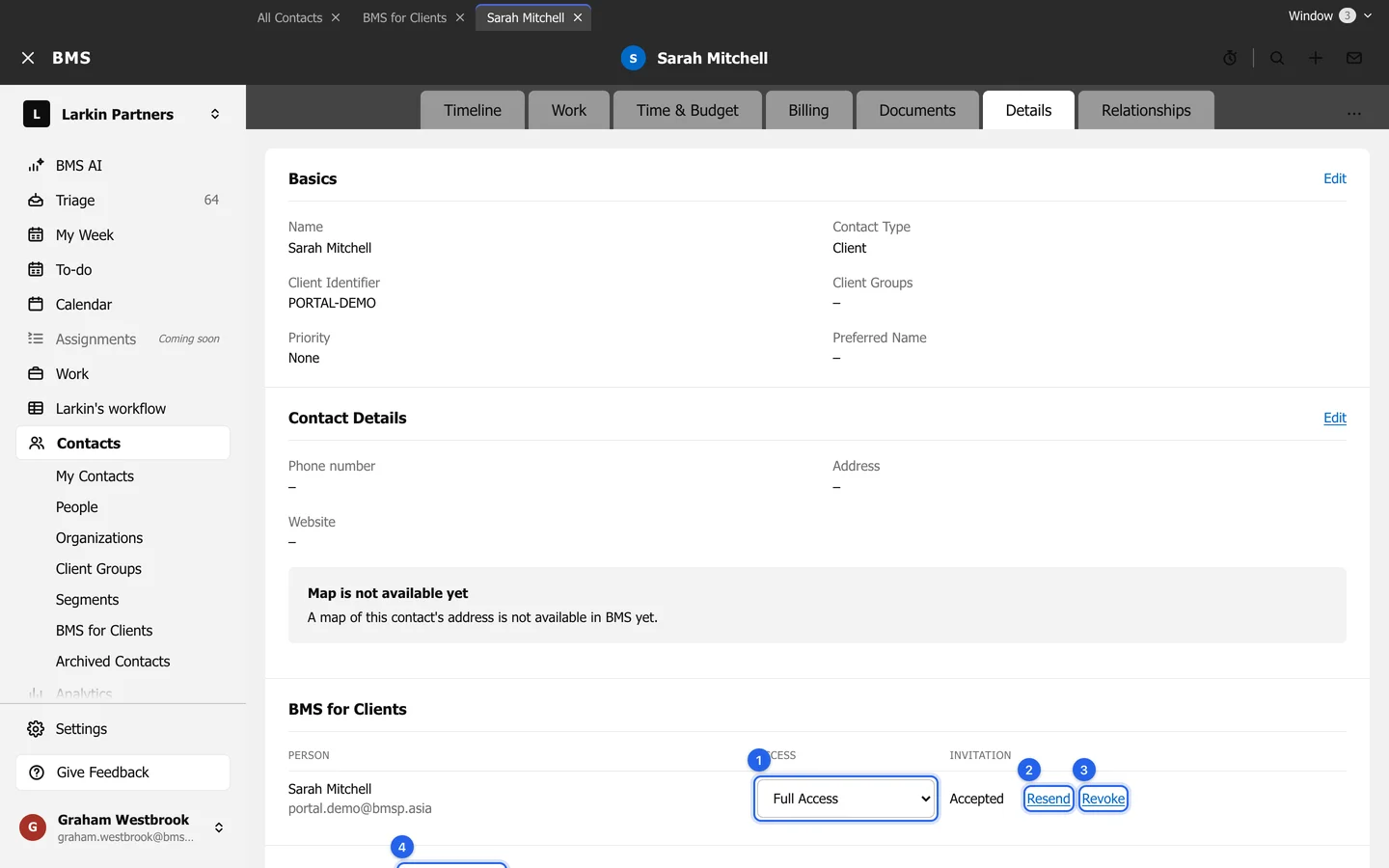
Everything about one person’s access is on the client’s Details tab, in the BMS for Clients and Client Portal sections.
Resend an invitation
Section titled “Resend an invitation”Press Resend on the person’s row. It opens the same dialog as Invite; sending again cancels the earlier open invitation and starts a new 7 days.
Change what they can see
Section titled “Change what they can see”Change the person’s Access between Limited Access and Full Access, or tick or untick Billing, straight in the table.
Revoke access
Section titled “Revoke access”Press Revoke. It takes effect immediately, without a confirmation: the person loses access to this client and any open invitation is cancelled. The change is recorded in the audit log.
Reset two-step sign-in
Section titled “Reset two-step sign-in”If a client has lost the phone with their authenticator app:
-
In the Client Portal section, press Edit Login Details. The section shows the client’s Login Email, and whether two-factor authentication is on.
-
Press Deactivate Two-Factor Authentication. The client can now sign in with their password and is asked to set it up again.