

Invite a client and choose Full or Limited Access
Invite one person to one client; the invitation lasts seven days.
An invitation gives one person access to one client in the portal. A person who works for several of your clients is invited to each.
-
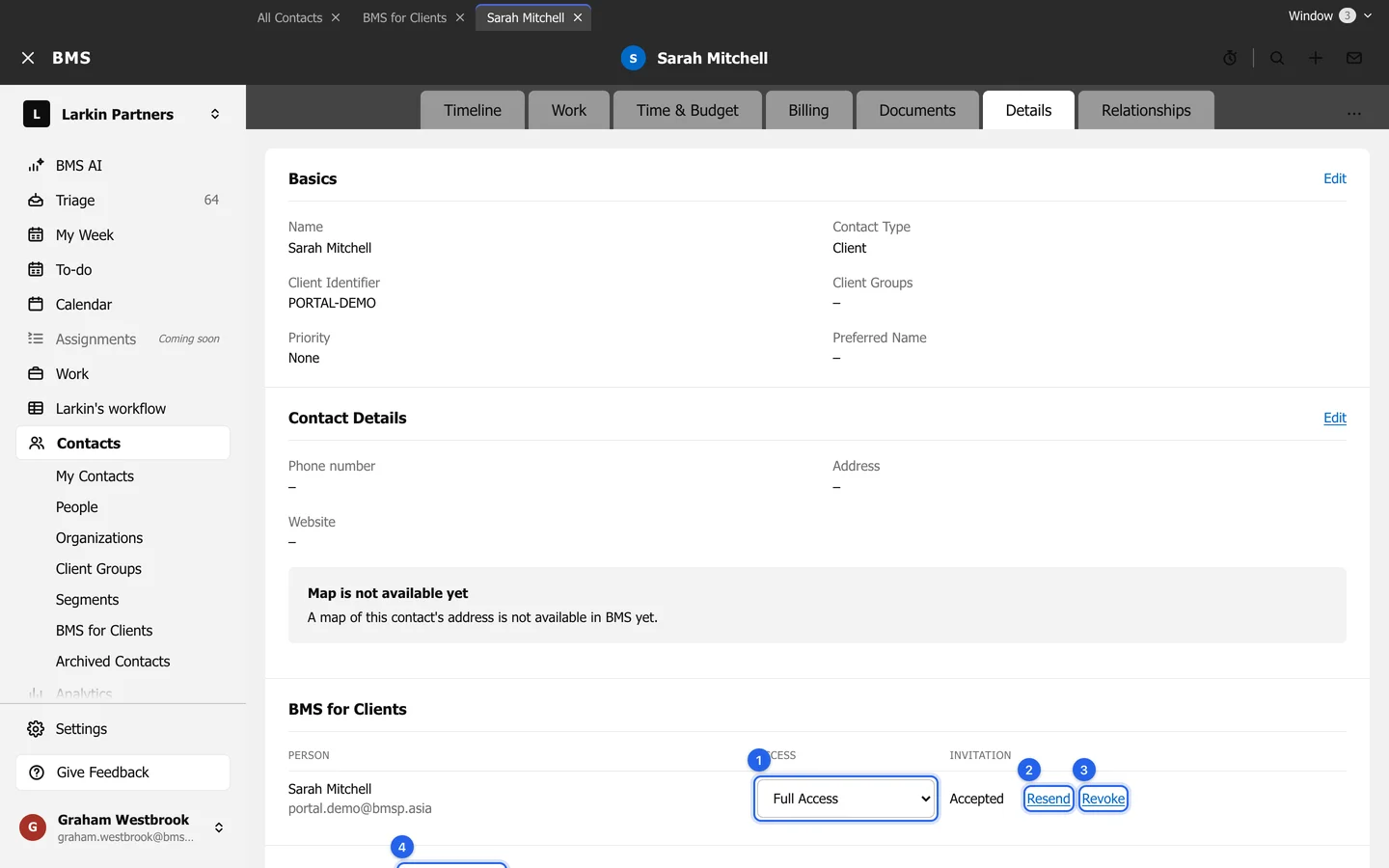
Open the client, then its Details tab, and find BMS for Clients. The table lists the people connected to the client, with their Access and Invitation status.
-
Press Invite on the person’s row. The link appears only for people with an email address on their contact card.
-
In Invite, choose:
- Email address: one of the person’s own addresses.
- Access level: Limited Access (only what is sent to them) or Full Access (every task and document for the client).
- Billing, if shown: whether they can see and pay the client’s outstanding invoices. It starts ticked for Full Access and for the client’s billing contact.
-
Press Invite. The invitation is for this client only and expires in 7 days.
Full or Limited Access
Section titled “Full or Limited Access”| Limited Access | Full Access | |
|---|---|---|
| Requests | Only those sent to them | Every request for the client |
| Your Work | Only jobs a request was sent to them on | Every job of a service |
| Documents | Only what was sent to them | Every document shared with the client |
The invitation column
Section titled “The invitation column”The Invitation column reads Not invited, Invited with the days left to accept, Expired, or Accepted.