

Create inbox rules
Route or label arriving email automatically, and run a rule on the inbox now.
When an email arrives in Triage, every rule whose condition it matches runs, oldest rule first.
-
Go to Settings > Inbox Rules and press Create Rule.
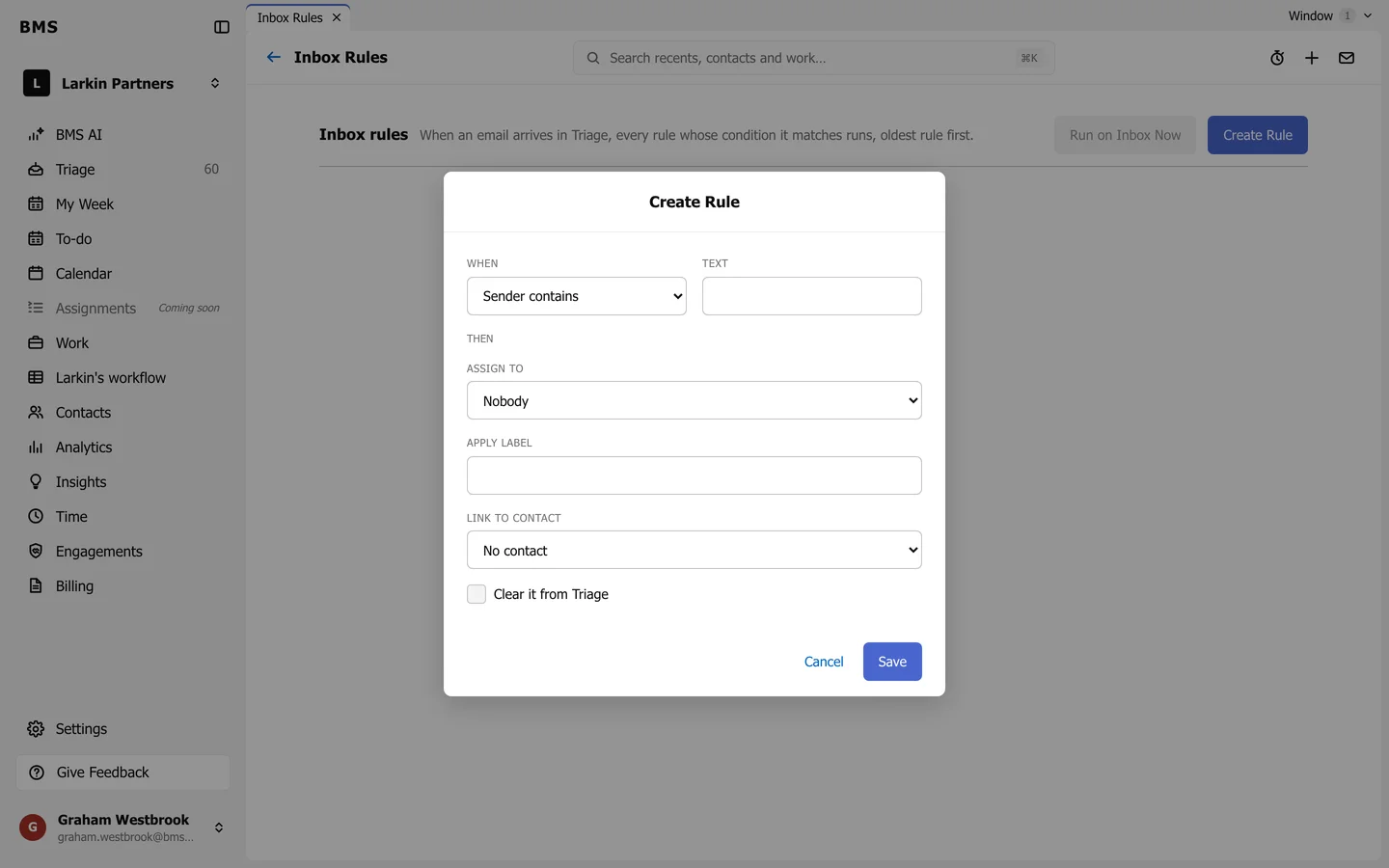
Create Rule: a condition, then what to do. -
Under When, choose Sender contains, Sender domain is or Subject contains, and type the text or domain.
-
Under Then, choose any of: Assign to a colleague, Apply label, Link to contact, and Clear it from Triage.
-
Press Save.
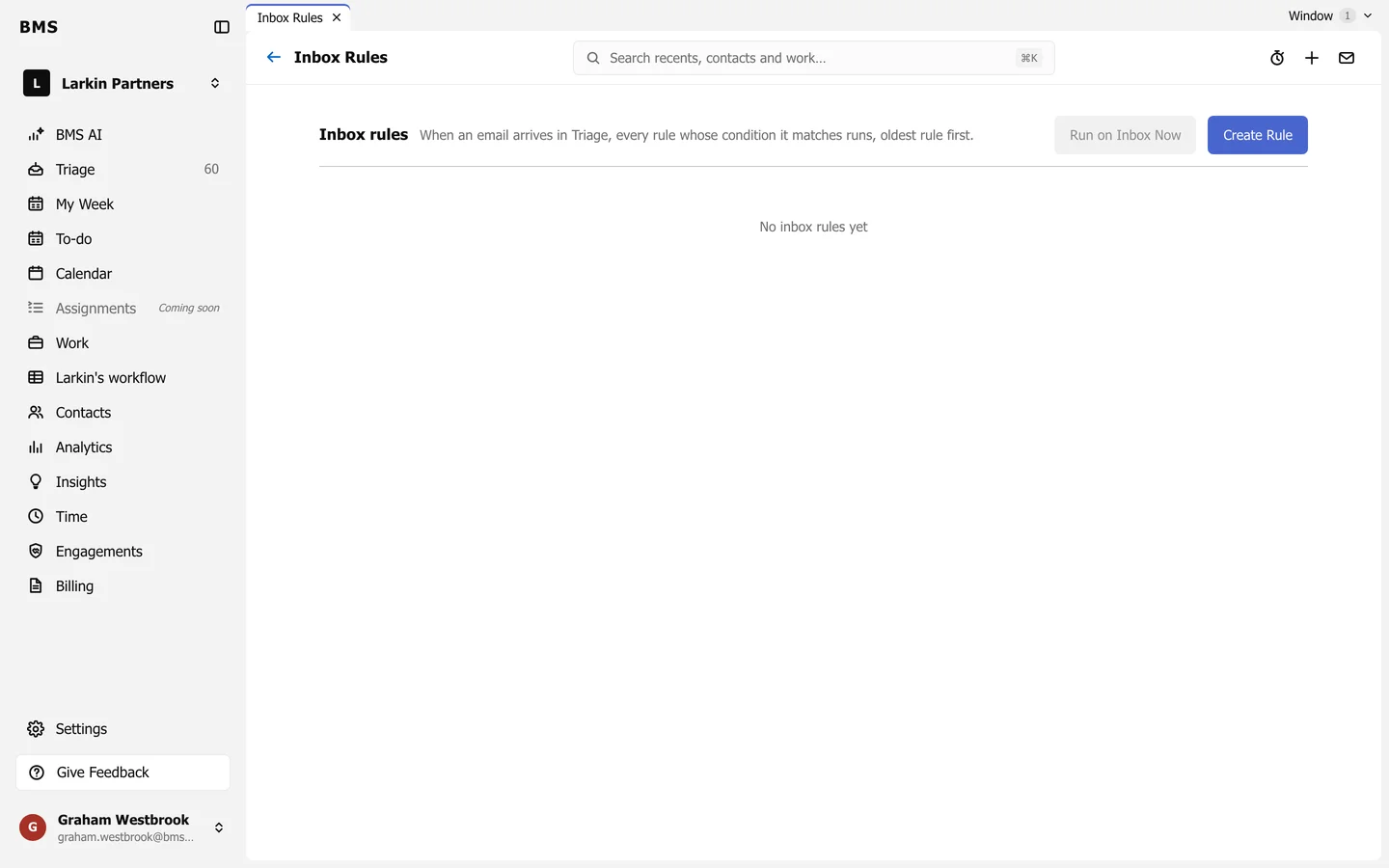
Each rule is listed as When … then …, with Delete. Press Run on Inbox Now to apply your rules to what is already in the inbox; BMS says how many emails matched.