

Request a signature or an approval
Add an eSignature or Approval Request to the job.
-
On the job’s Tasks tab, press Add eSignature Request or Add Approval Request.
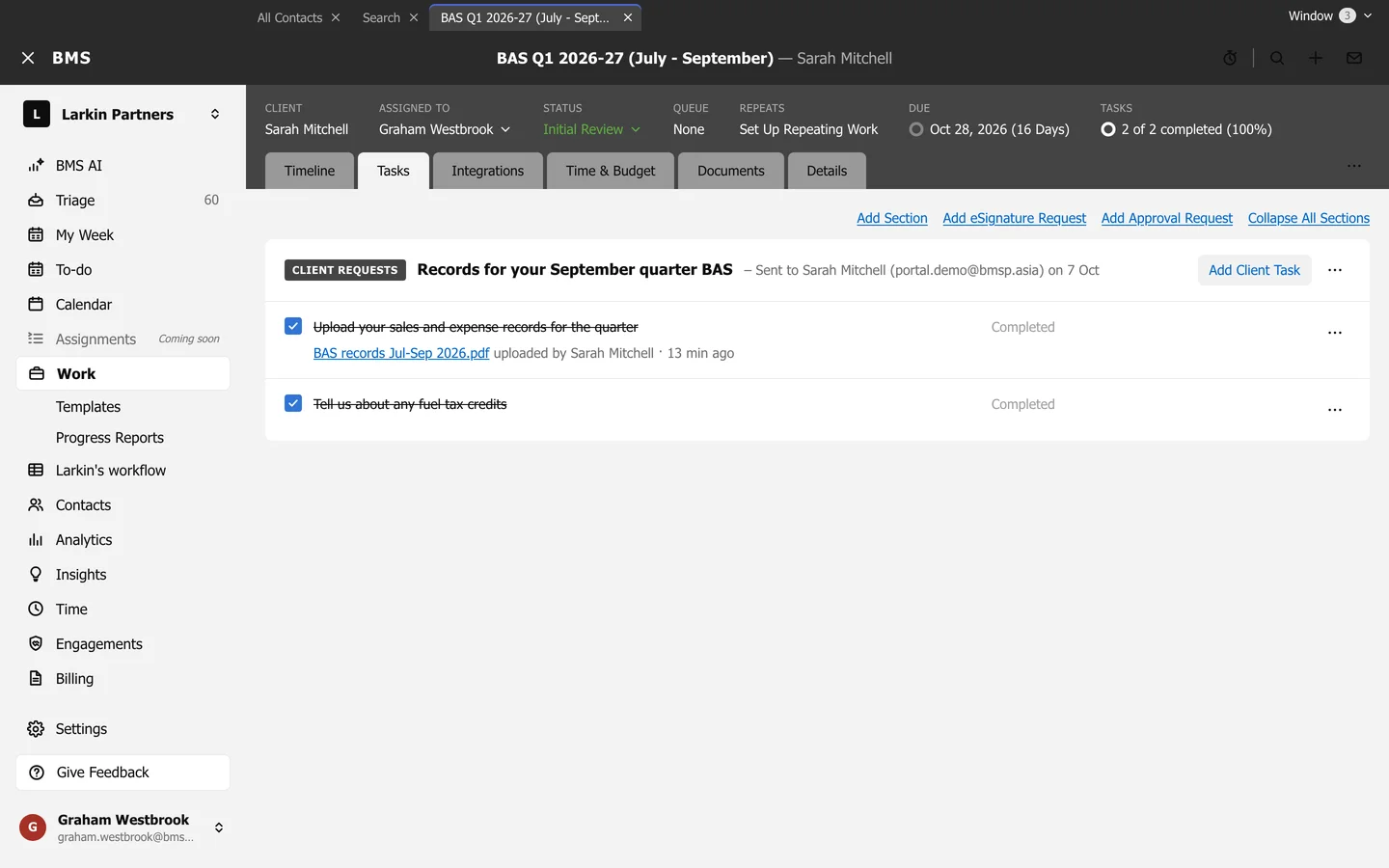
Add eSignature Request and Add Approval Request are at the top of Tasks. -
Add Documents: choose the PDF and a Package name.
-
Select Recipients: add each person and their role; for an approval, choose Who must approve.
-
Compose and Send: choose the Send Order, write a Message, set Expires after (days), and press Send.
Recipients must have access to the client in BMS for Clients; they sign in the portal. Tracking, downloading the signed copy and voiding are in eSignature and approvals.