Turn on BMS for Clients
For one client from the contact, or for all clients at once.
BMS for Clients is off until you turn it on. Turning it on invites nobody: you still choose who gets access to each client.
For one client
Section titled “For one client”-
Open the client, then its Details tab.
-
Find the BMS for Clients section. While it is off, it says so.
-
Press Turn on BMS for Clients. Client requests sent from now on open in the portal, and you can invite the people who work with you on it.
For all clients
Section titled “For all clients”-
Go to Settings > BMS for Clients.
-
In the banner “Activate BMS for Clients for all contacts.”, press Activate (1).
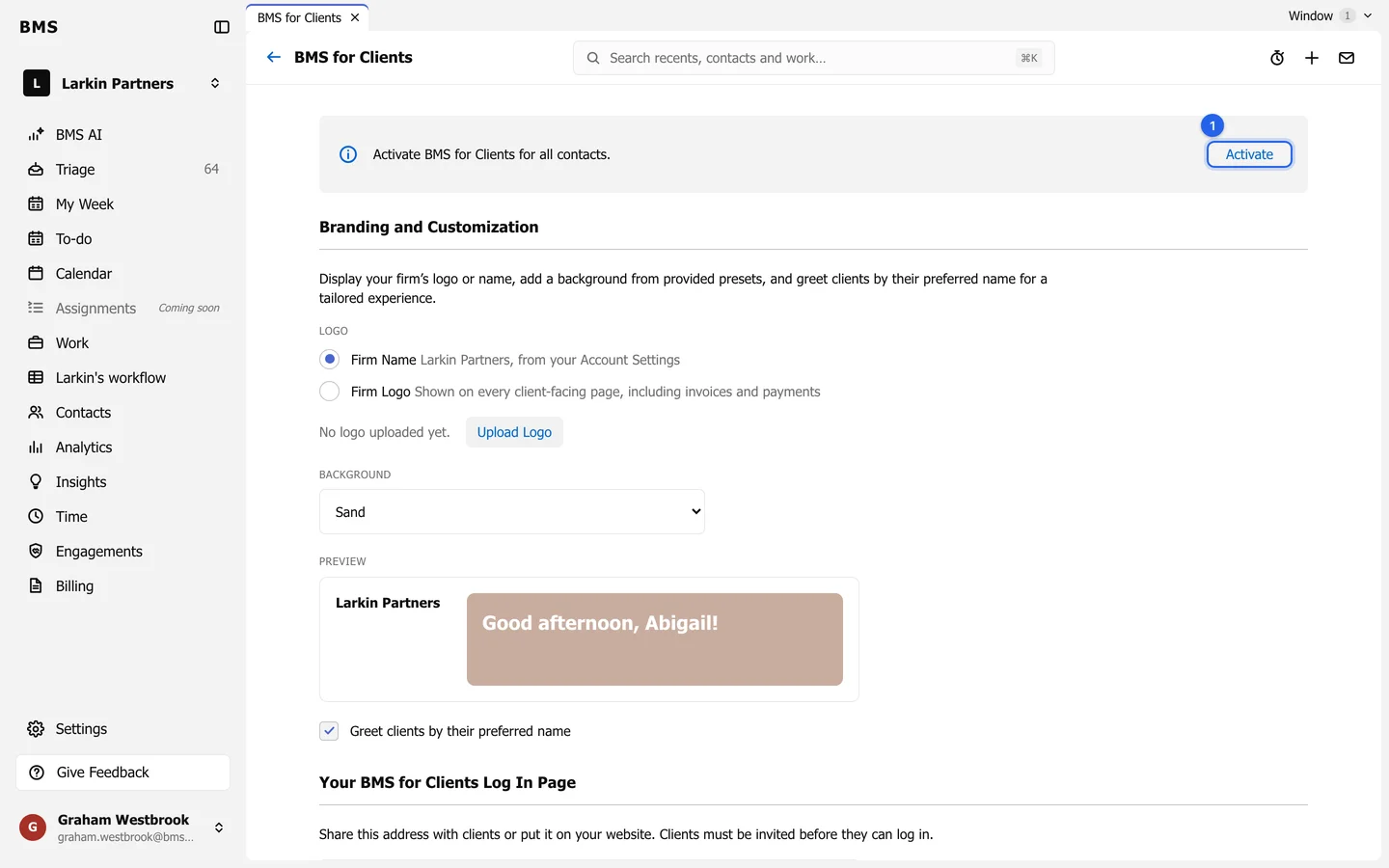
The Activate banner turns the portal on for every client at once. -
Read the confirmation and press Activate.
See who is on the portal
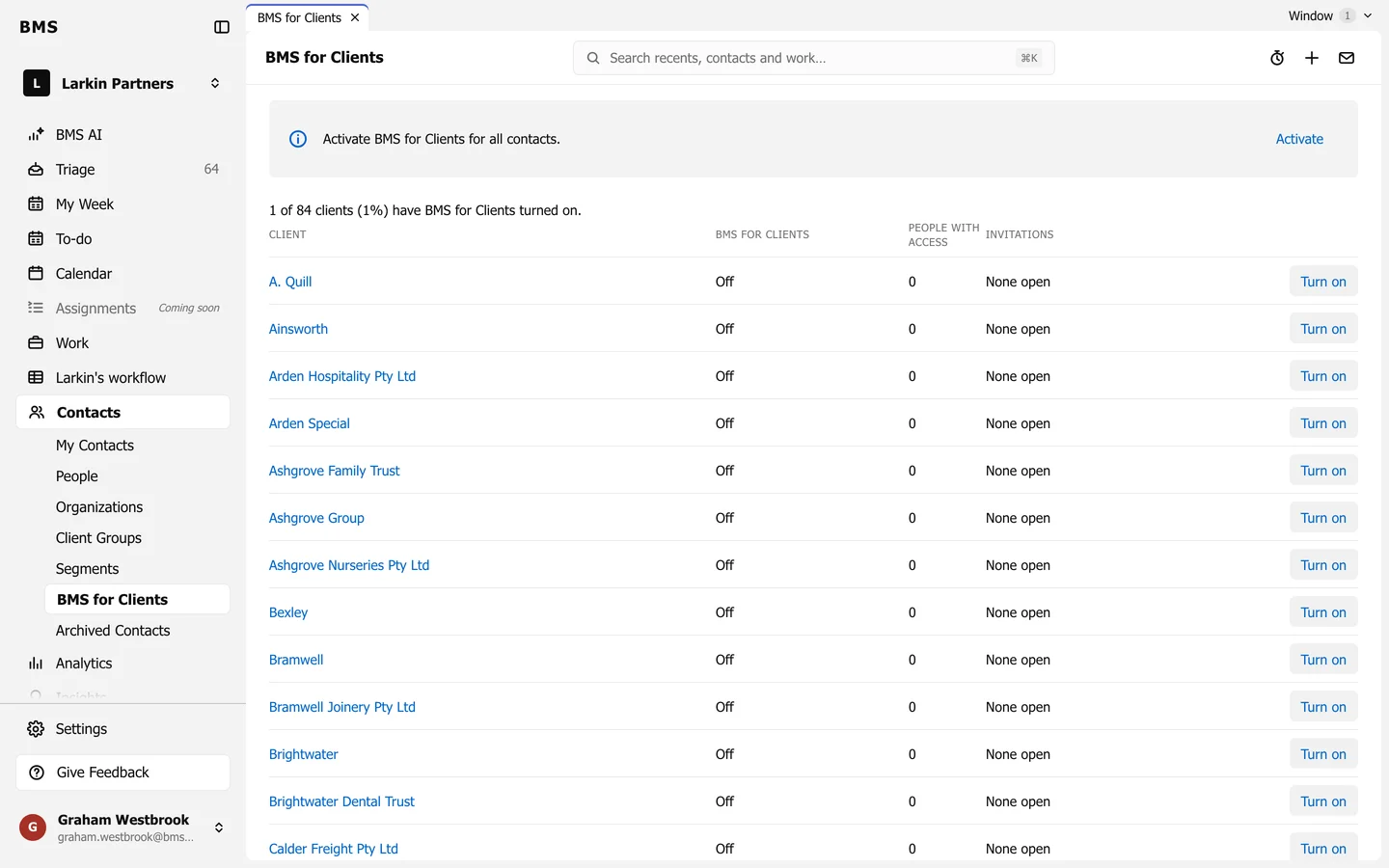
Section titled “See who is on the portal”Contacts > BMS for Clients lists every client with whether the portal is on, how many people have access and how many invitations are open. Press Turn on on a row, or Manage Access to open that client’s Details tab.