Share documents with a client
Share a file so it appears in the client's Documents.
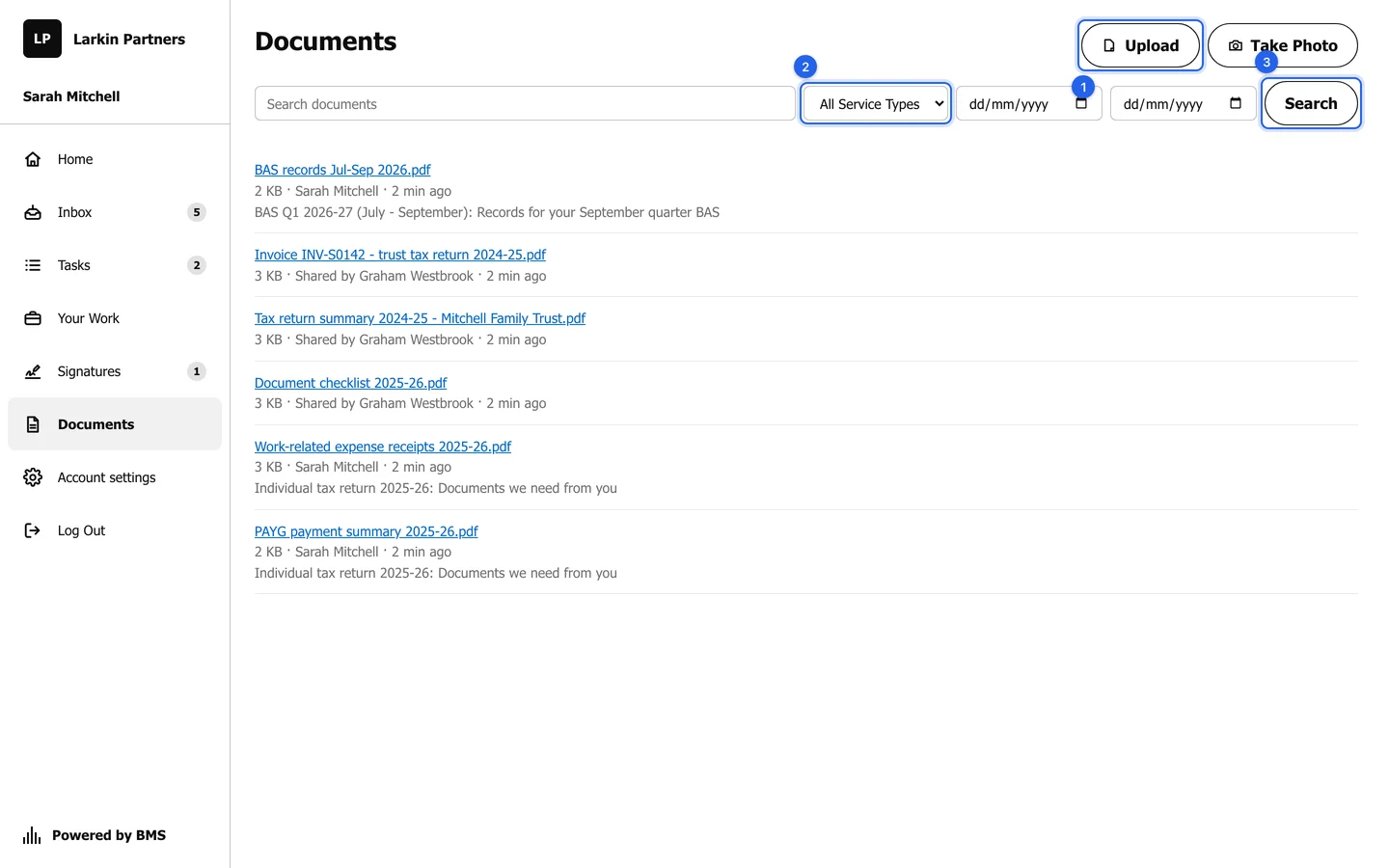
Share a checklist, last year’s return summary or an invoice copy, and it appears in the client’s Documents in the portal.
-
Open the client’s or the job’s Documents.
-
On the file’s row, open its actions menu and choose Share. To share several files, tick them and use the same option in the bar above the list.
-
In Share with Client, press Share.
Stop sharing
Section titled “Stop sharing”Choose Manage Client Access on a shared file, then Stop Sharing. The file leaves the client’s portal; it stays in BMS.
Find shared and received files
Section titled “Find shared and received files”The side panel of Documents has two views: From Client (everything clients sent) and Shared With Client. Shared files carry a tick.