

eSignature and approvals: packages, expiry and audit trail
Send a document for signature, track every package, download the signed copy or void it.
An eSignature package is one or more PDFs sent to clients to sign in the portal.
Send a document for signature
Section titled “Send a document for signature”-
Open the job’s Tasks tab and press Add eSignature Request.
-
In Prepare eSignature Package:
- Choose the Document (PDF) and a Package name.
- Add recipient for each person, as Signer or CC. Recipients must already have portal access to the client.
- Choose the Send Order: All at once or In sequence.
- Write a Message and choose Expires after (days): 30 by default.
-
Press Send. The client finds it under Signatures and on Home.
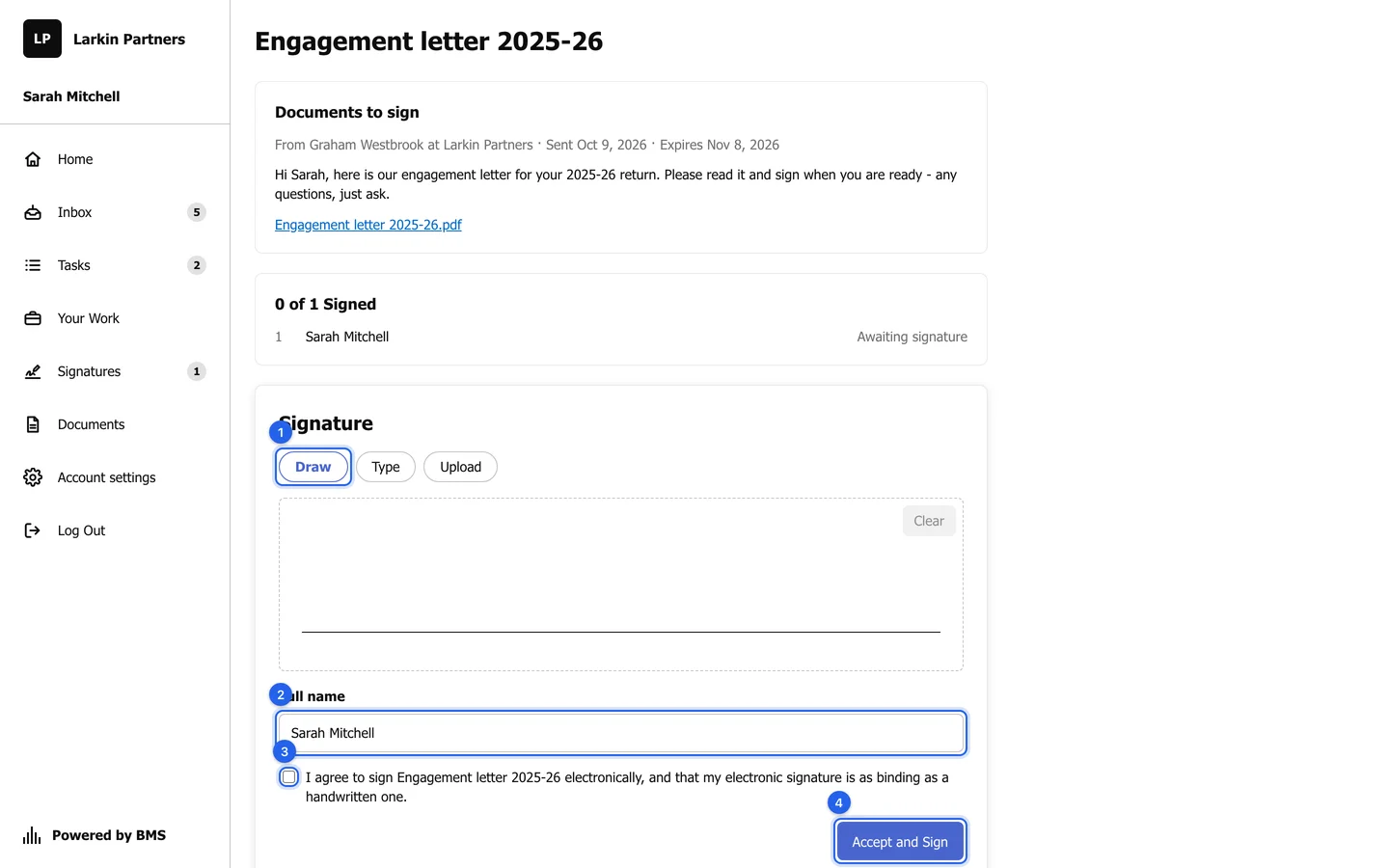
Track every package
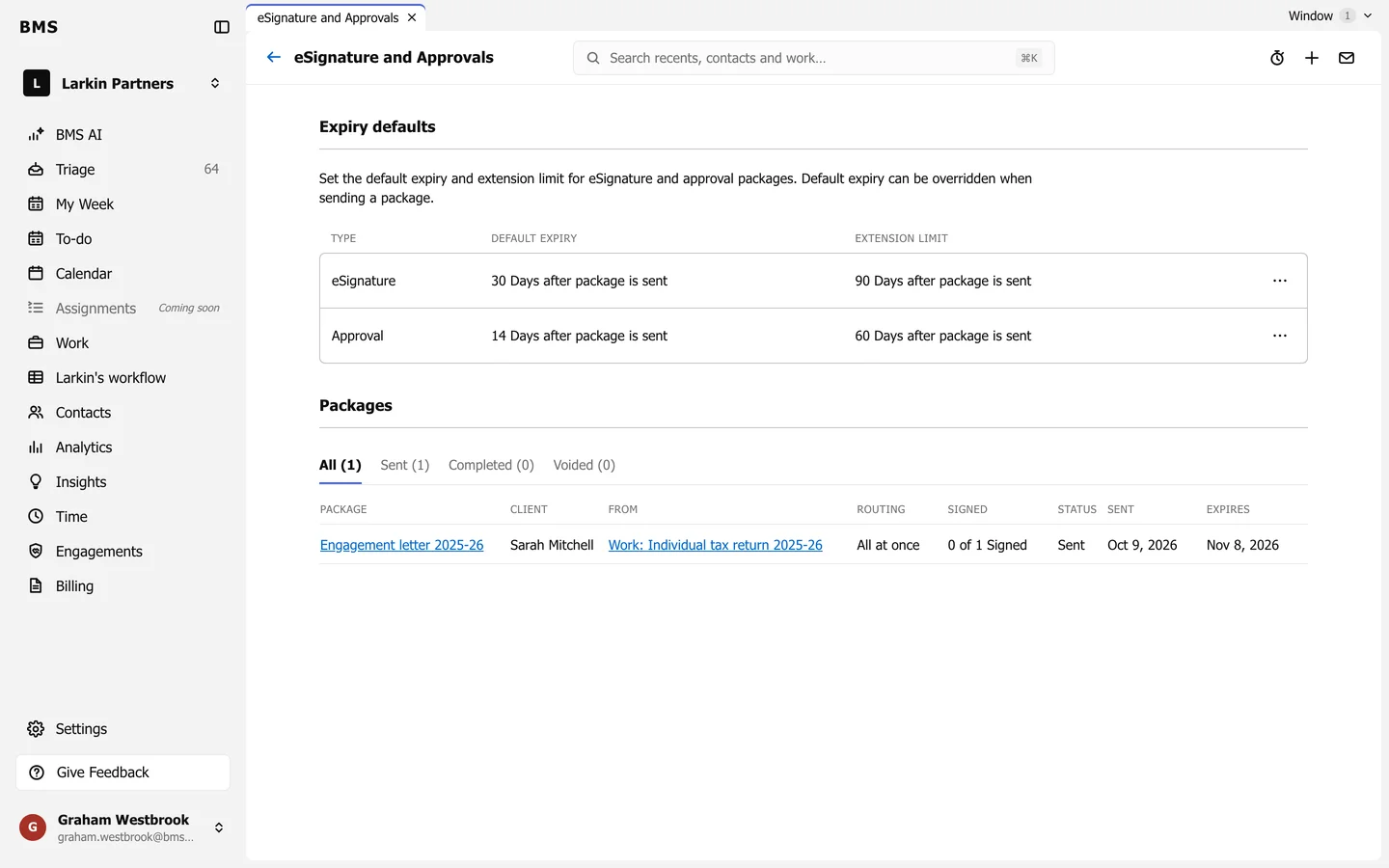
Section titled “Track every package”Settings > eSignature and Approvals lists every package, with All, Sent, Completed and Voided tabs, who it is from, who has signed, and when it expires.
Open a package to see its recipients, each signature with the time and IP address, and the full Audit Trail. Download Document gets the original; Download Signed Document gets the signed copy once everyone has signed. The signed copy is also filed on the job and shared with the client by itself.
Void a package
Section titled “Void a package”Press Void Package. Recipients can no longer open or sign it; signatures already collected stay in its audit trail.
Expiry defaults
Section titled “Expiry defaults”Expiry defaults sets the default expiry and the limit for each type: eSignature 30 days (up to 90), Approval 14 days (up to 60).