

See your BMS due dates in Outlook, Google or Apple Calendar
Subscribe once; due dates and meetings appear in your own calendar.
Subscribe once and your BMS calendar (due work, tasks, to-dos, engagement dates and meetings) appears in Google Calendar, Outlook or Apple Calendar, and stays up to date.
-
On Calendar, press Subscribe.
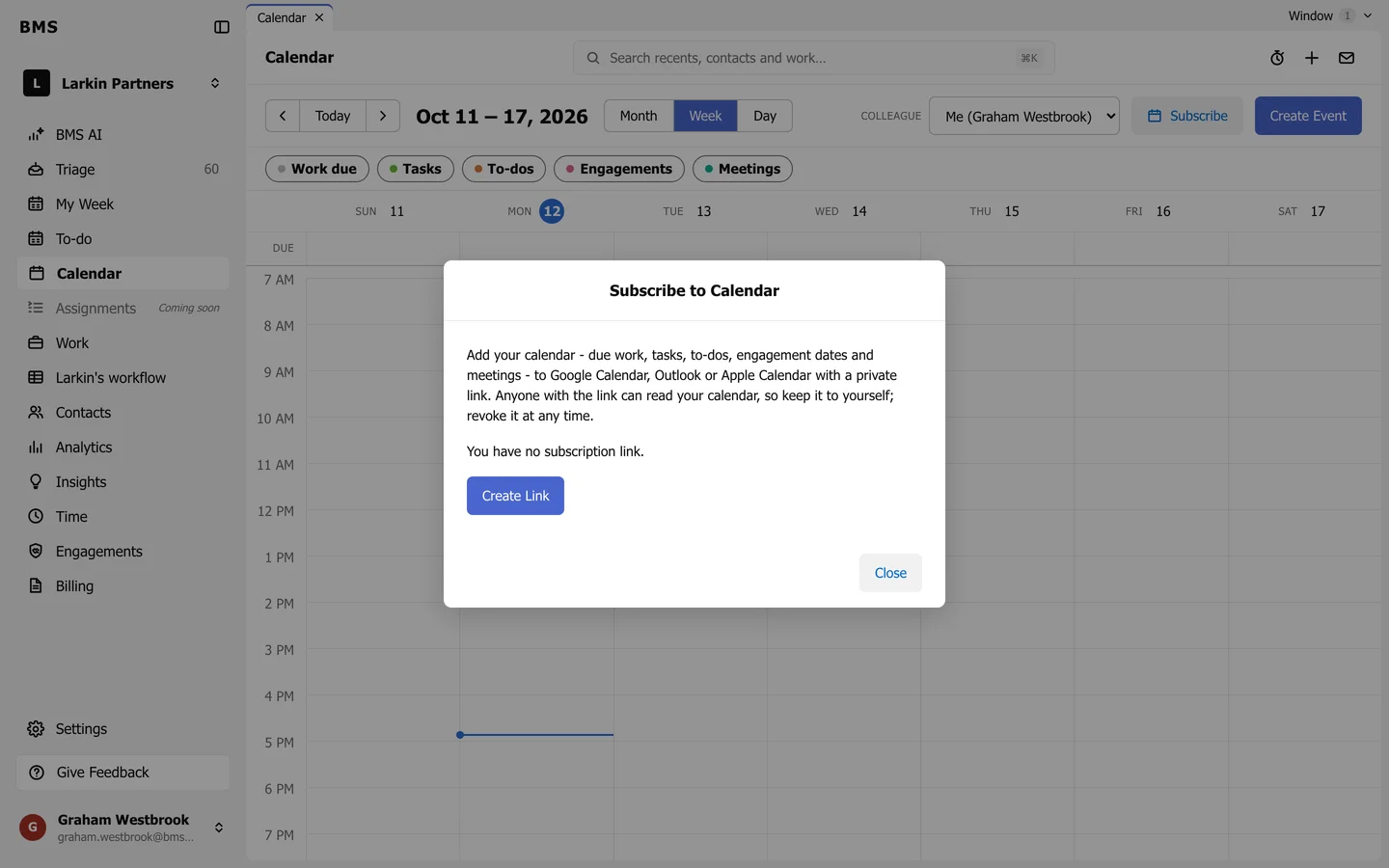
Subscribe to Calendar. -
Press Create Link, then Copy to copy Your subscription link.
-
Add it to your calendar app as a calendar from the internet:
- Outlook: Add calendar > Subscribe from web, then paste the link.
- Google Calendar: Other calendars > + > From URL, then paste the link.
- Apple Calendar: File > New Calendar Subscription, then paste the link.
Your calendar app checks the link for changes on its own schedule, so a new due date can take a few hours to appear.