

Sign a document
Draw, type or upload your signature; the signed copy files itself on the job.
When your firm needs your signature, such as on an engagement letter, it appears under Signatures and in Waiting for action on Home.
-
Press Signatures in the menu, then the document waiting for you.
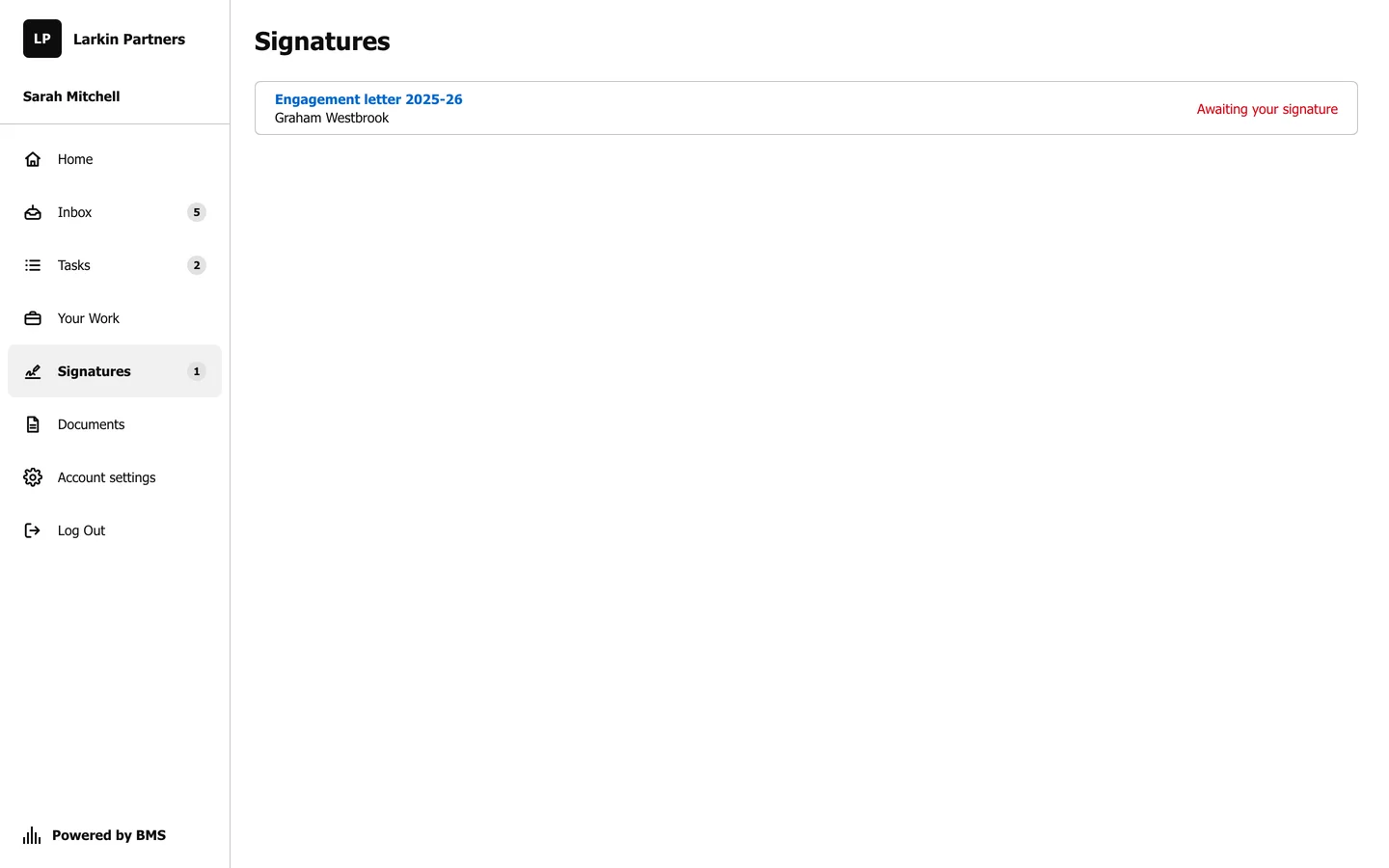
Signatures lists every document waiting for you. -
Read the firm’s message and open the document from its link to read it in full. The page shows who sent it, when, and when it expires.
-
Under Signature, choose Draw, Type or Upload (1) and add your signature. Clear starts again.
-
Check your Full name (2), then tick the box agreeing to sign electronically (3).
-
Press Accept and Sign (4).
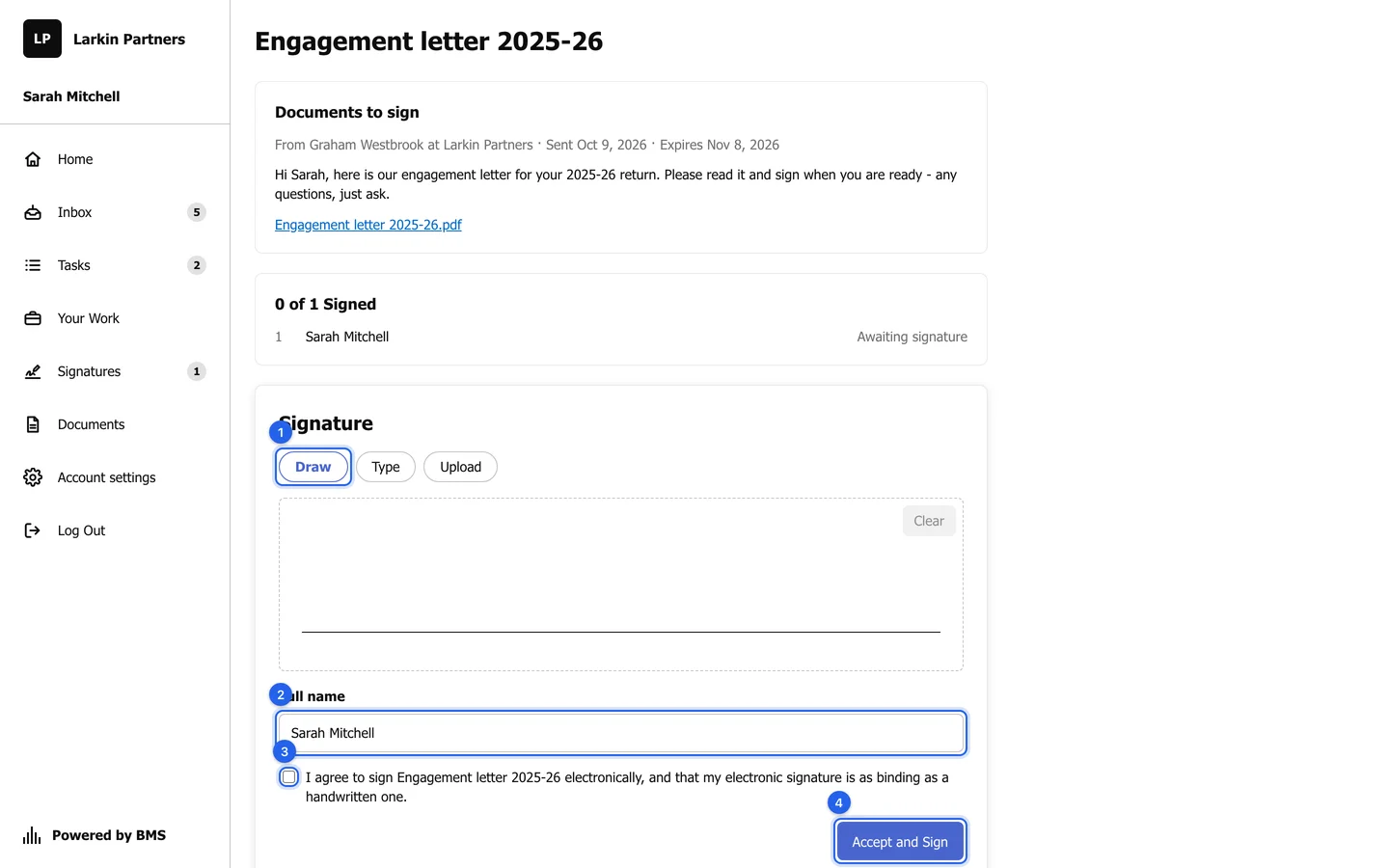
Choose how to sign, check your name, agree, then Accept and Sign.
Once everyone who needs to sign has signed, the signed copy is filed on the job and shared back with you in Documents. Every step is kept in an audit trail, so the firm has proof of when and how it was signed.