

List view and Split view
Switch between a grouped list and the reading pane with its information tray.
Triage has two layouts. Switch with List (1) and Split (2) at the top right; View controls (3) holds the grouping options.
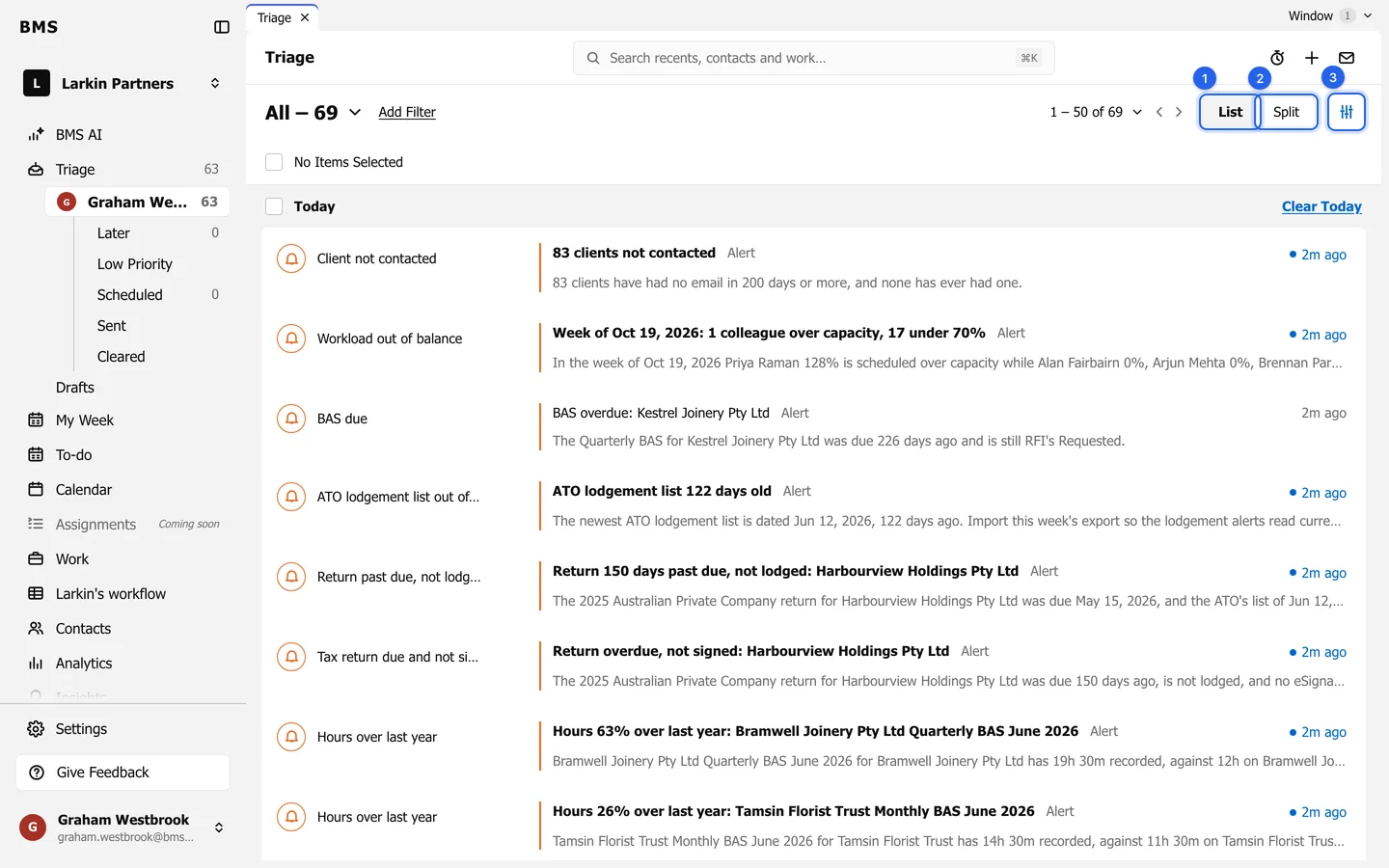
List view
Section titled “List view”- Items are grouped by day: Today, Yesterday, This Week and Earlier.
- Tick an item’s checkbox to select it; Shift-click selects a range. With items selected, Clear and Add to Timeline appear.
- Each day has its own Clear link, such as Clear Today.
- Click an item to open it in Split view.
Split view
Section titled “Split view”Split view shows the list, the item you are reading in the reading pane, and the information tray on the right.
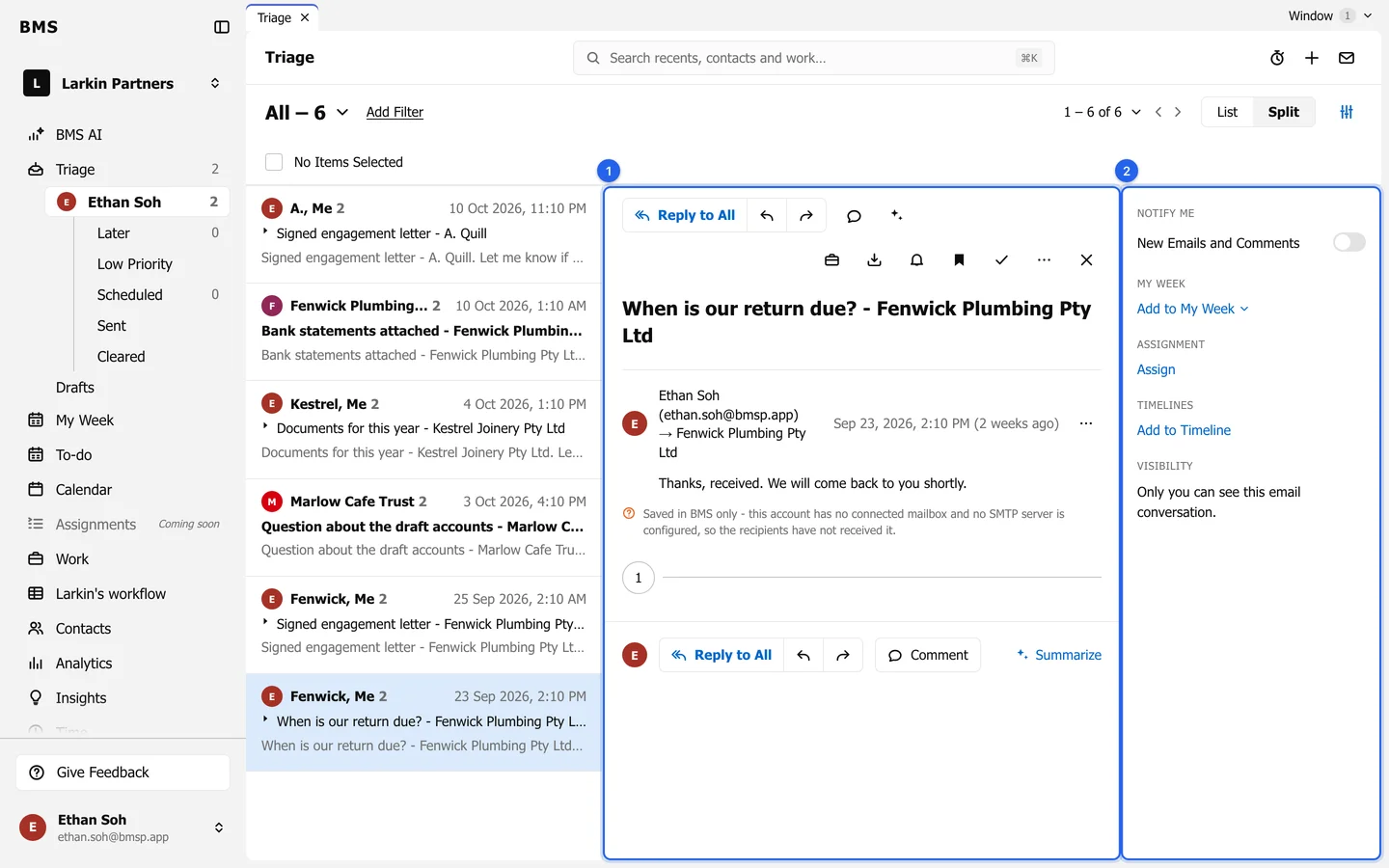
The information tray shows, from the top:
- Notify me: be told about new emails and comments on this conversation.
- My week: plan it for this week or later; see Add to My Week.
- Assignment: who it is assigned to, the to-do date, due date and status.
- Timelines: the contacts and jobs it is filed on, and Add to Timeline.
- Visibility: who else at the firm can see it.
View controls
Section titled “View controls”View controls turns Conversation Grouping On or Off, sorts threads Newest First or Oldest First, and links to Manage Email Labels and Manage Inbox Rules.