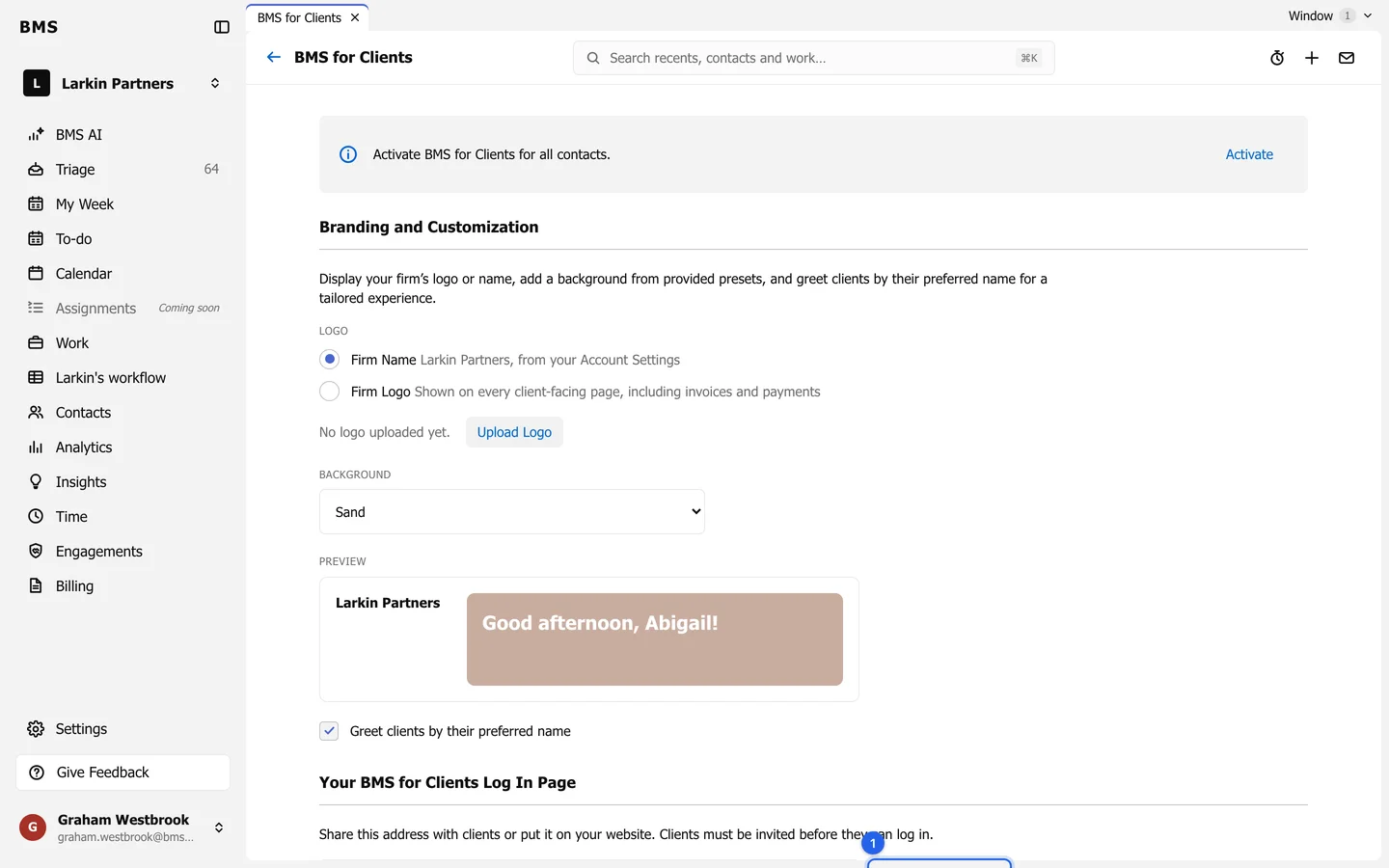
Portal branding: logo, background and greeting
Firm name or logo, Sand, colour or image background, and preview.
Clients see your firm’s brand in the portal, on its sign-in page and on invoices, not BMS’s. Branding is in Settings > BMS for Clients > Branding and Customization.
-
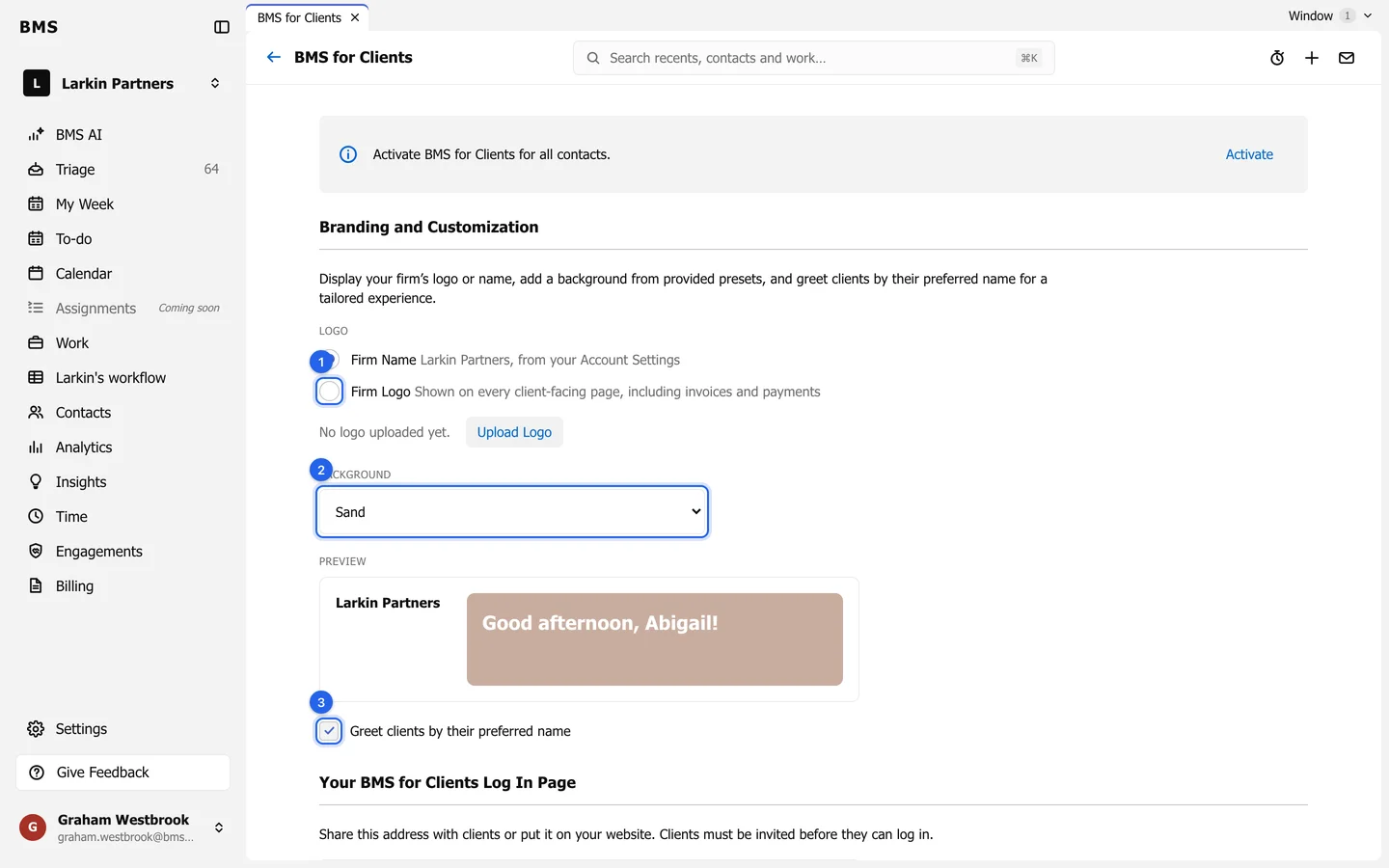
Under Logo, choose Firm Name to show your firm’s name, or Firm Logo to show an image. Press Upload Logo and choose a PNG, JPEG, GIF or WebP image up to 20 MB.
-
Under Background, choose Sand, Custom Color (a hex colour or the picker) or Custom Image (at least 2400 x 1600 pixels, under 20 MB). With a colour or image, choose a Greeting Text Color that reads well on it.
-
Tick Greet clients by their preferred name to greet them as “Abigail” rather than “Abigail Silvers”.
-
Check the Preview, then press Save at the bottom of the page.
Your portal’s sign-in page
Section titled “Your portal’s sign-in page”Your BMS for Clients Log In Page shows the address clients sign in at. Press Copy to Clipboard to paste it into an email or onto your website. Clients must still be invited before they can sign in.