

Move a job automatically when the client responds
Job Status Automation: Client responded, Time logged, Invoice issued; a hand-set status always wins.
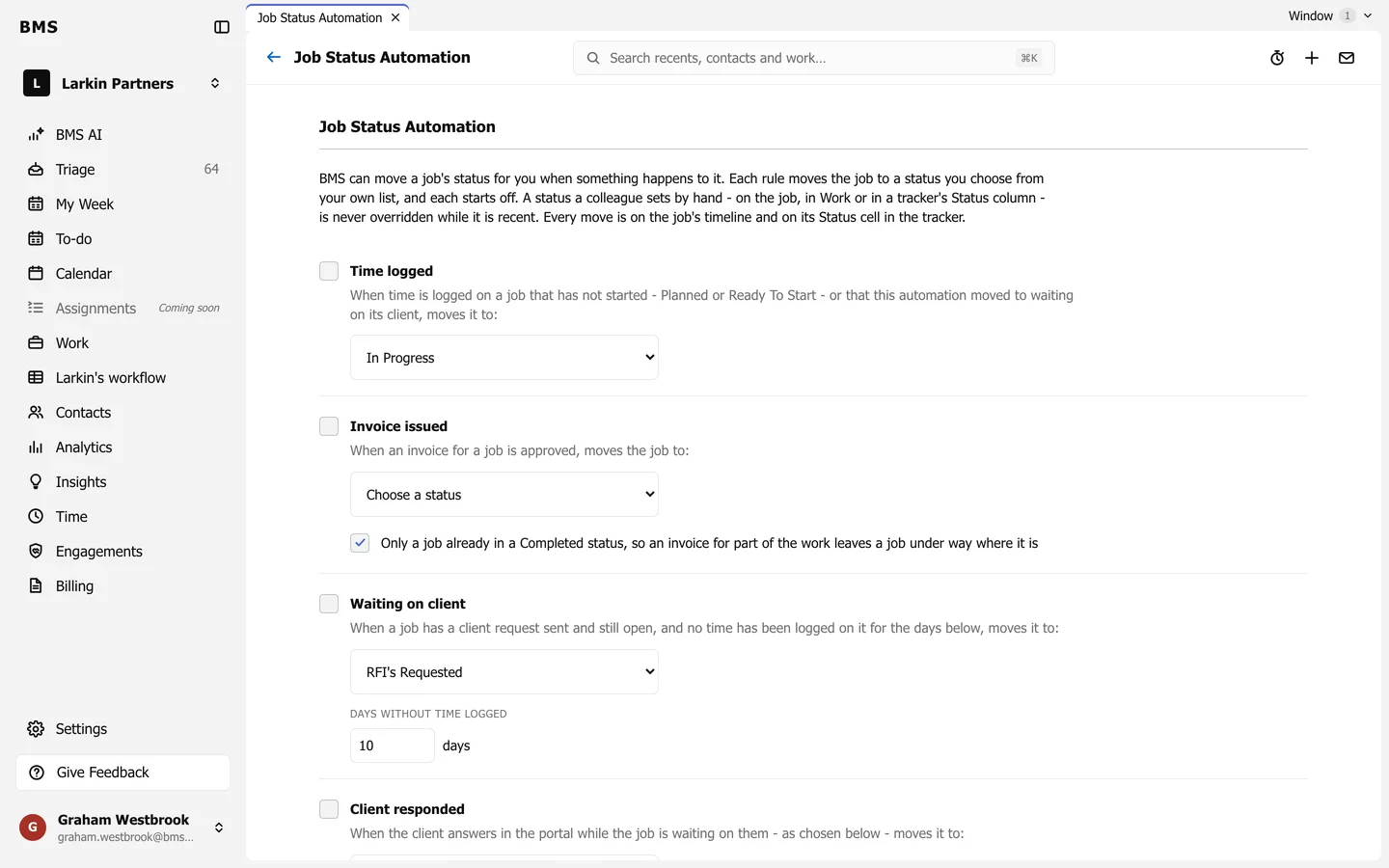
Job Status Automation moves a job’s status for you when something happens. Each rule is off until you turn it on and choose the status it moves the job to.
Move a job when the client responds
Section titled “Move a job when the client responds”-
Go to Settings > Job Status Automation.
-
Tick Client responded and choose the status, such as In Progress.
-
Under When, choose:
- Everything requested is answered, or the client pressed Done uploading (default): every task on the job’s sent requests is answered, skipped with a reason, or has a file, or the client pressed Done uploading.
- The first upload or mark-done: the first thing the client sends.
-
Save.
The rule moves only a job in a waiting status, so a late upload never pulls back work you have already moved on.
The other rules
Section titled “The other rules”| Rule | Moves a job when |
|---|---|
| Time logged | Time is logged on a job that has not started, or that this automation moved to waiting on its client. |
| Invoice issued | An invoice for the job is approved in BMS. Optionally only for a job already in a Completed status. |
| Waiting on client | No time has been logged for a number of days (10 by default). Checked every 15 minutes; Check Now runs it at once. |
A status set by hand always wins
Section titled “A status set by hand always wins”Leave a status set by hand alone for a number of days (3 by default; 0 turns it off). Within that time, automation never overrides a colleague’s own change.
Every move is listed under Recent Moves, on the job’s timeline and in the job tracker’s Status cell, with the reason, such as “Sarah Mitchell answered everything requested in the portal”.