

Add a contact
Person, Organization or Client Group; contact type cannot change later.
-
On Contacts, press Add Contact (or + > Contact from anywhere).
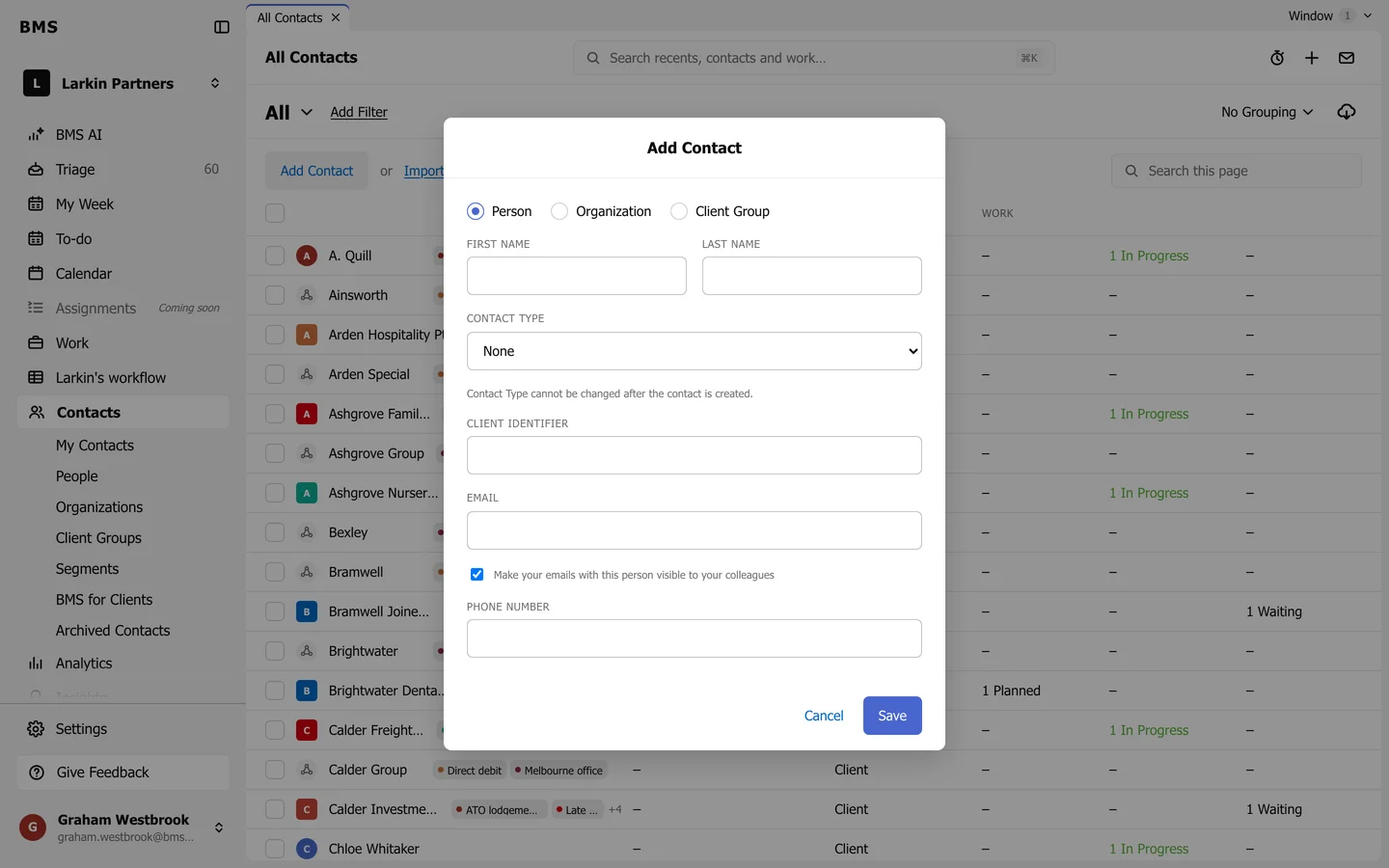
Add Contact. -
Choose Person, Organization or Client Group.
-
Fill in the name, the Contact Type (such as Client) and the Client Identifier (your code for them, such as
QUIL01). -
Add an Email and Phone Number. Leave Make your emails with this person visible to your colleagues ticked to share your emails with them on their timeline.
-
Press Save.