

Automators on sections
Let a section change status or notify when its tasks are done.
An automator is a rule on a section: when some tasks reach a status, change something. They show in grey under the section title, such as “When all tasks in the section above this section are ‘Completed’ change all tasks in this section to ‘Ready To Start’”.
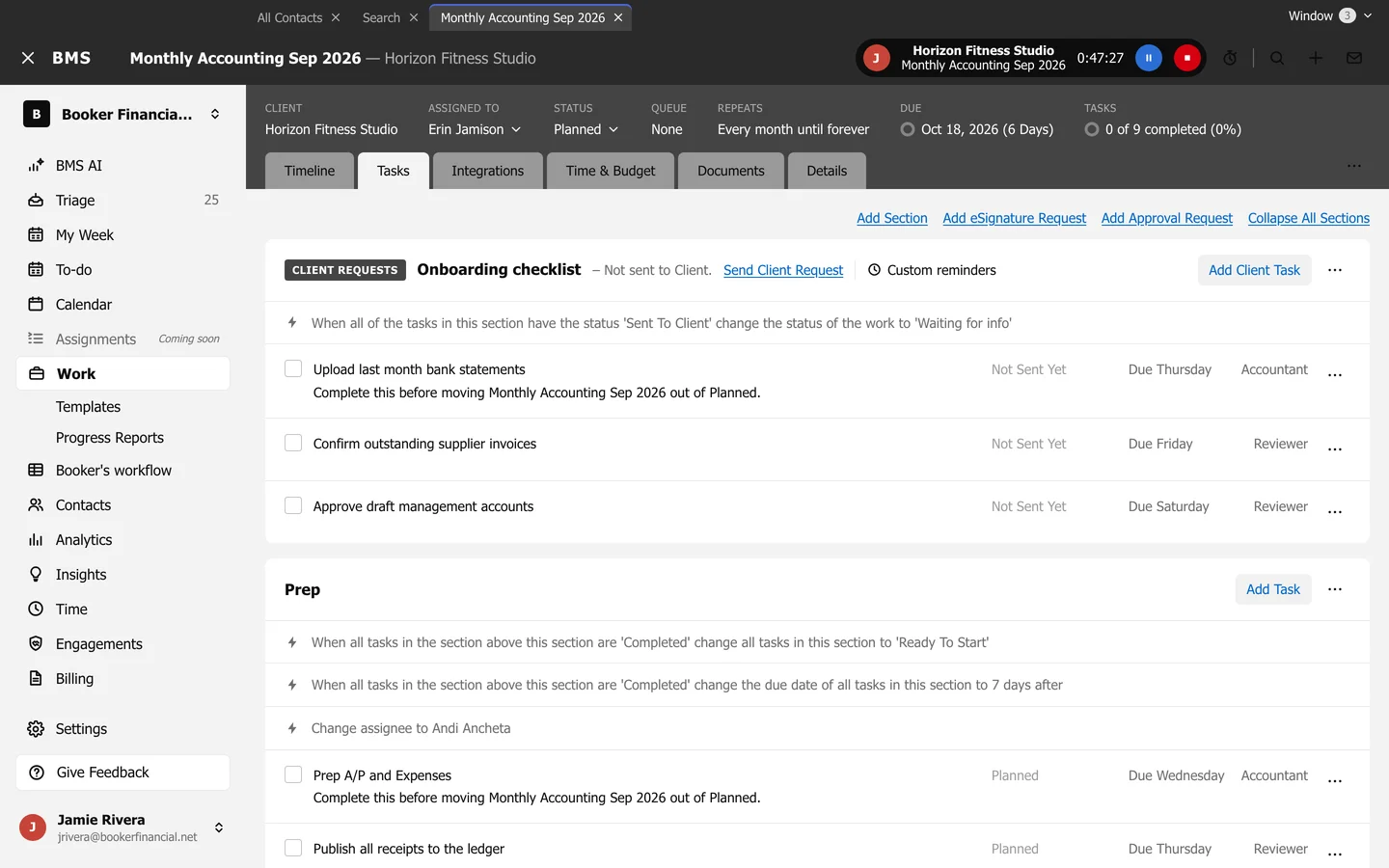
-
Open Section options and choose Add Automator.
-
Under When, choose what it watches: the section above, this section, the work, everything above, a specific section, or the extension status.
-
Under Have the status, choose the status that triggers it.
-
Under Change, choose what it changes: Status, Due Date, Assignee, Queue, Extension or Section Active State, and of what: this section’s tasks or the work.
-
Fill in the new value, such as the status, how many days after, or who, and save.
Each automator’s menu has Reset (let it fire again) and Delete. Templates carry automators too, so every job created from them gets the same rules.